Vehicles
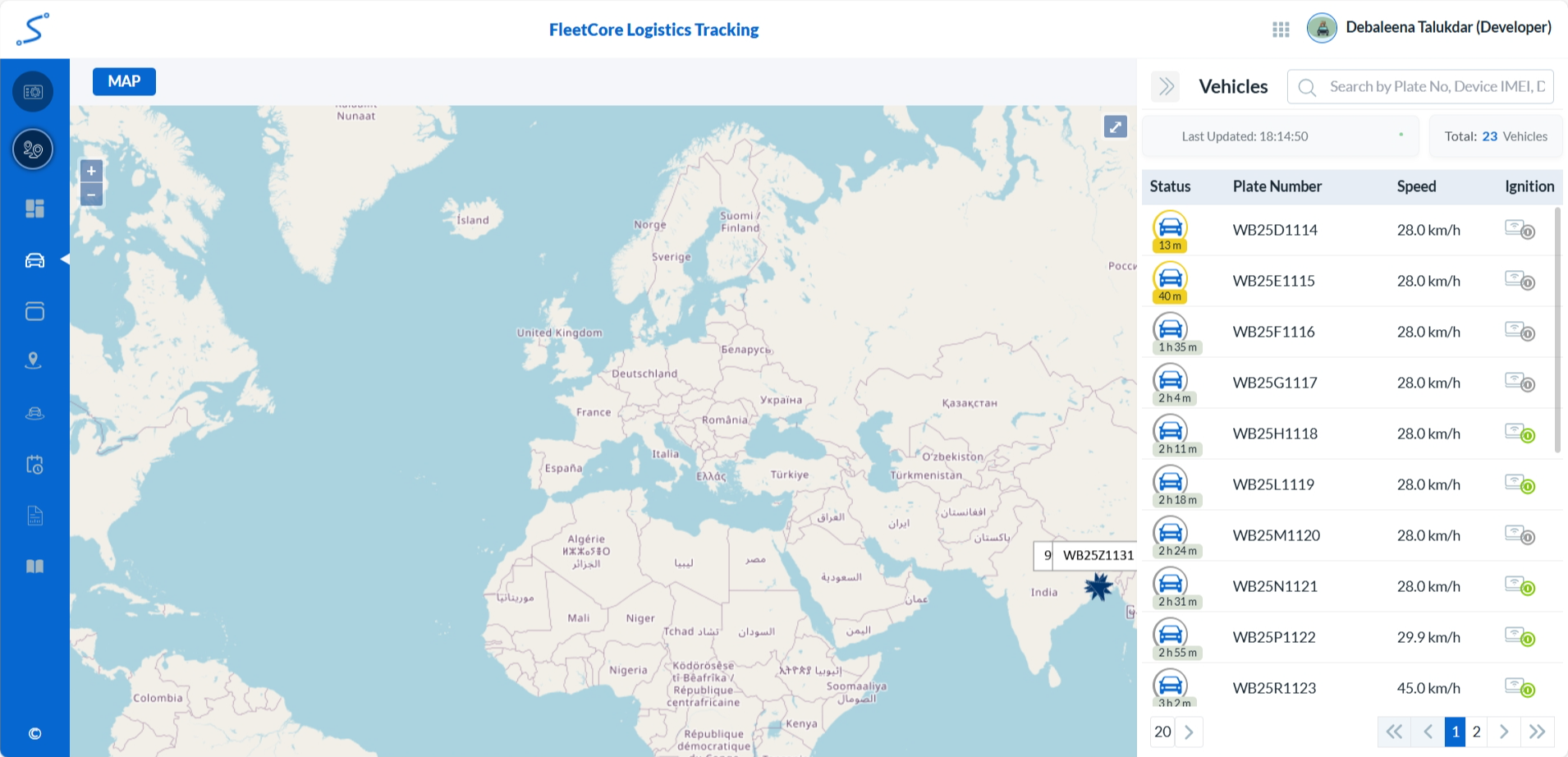
After logging into the Tracking Portal, you will land on the Vehicles page. This page displays a list of all vehicles along with their details, accompanied by a map showing their locations.
To be Updated...
Overview
The Vehicles section provides a powerful and comprehensive overview of your entire fleet. Some of its key features include:
Comprehensive vehicle list with color-coded status indicators (active, idle, offline) for instant activity insight.
Real-time vehicle mapping for quick location monitoring.
Live and Historical Tracking to monitor current movement or review past activity.
Detailed Track Points with customizable data (timestamp, address, speed, battery, fuel, etc.).
Trip and Event visibility shown directly on the map for better context.
Access to Raw Data for deep analysis or external system integration.
Five map view options to suit different user preferences.
Two layout choices for a customizable viewing experience.
Vehicles List
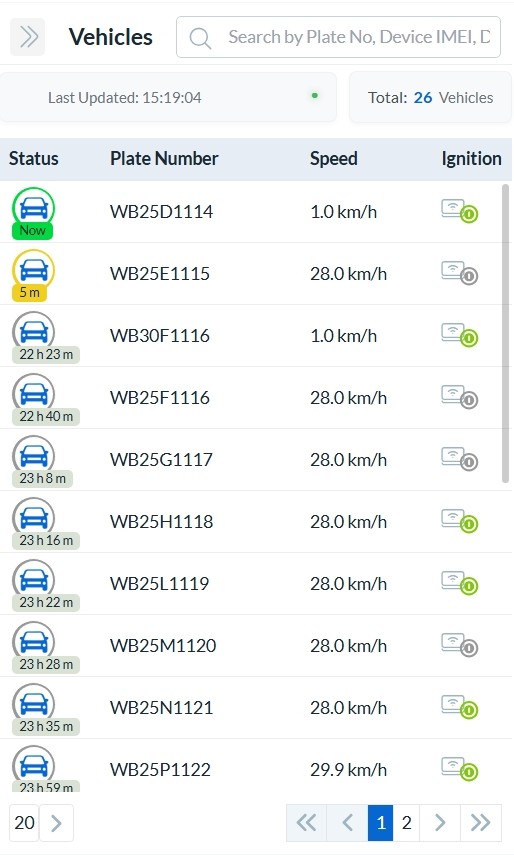
Vehicles are sorted by most recent activity, with the latest at the top.
Pagination at the bottom of the page lets you browse through the list.
You can search by Plate Number, Device IMEI or Device Name to quickly find a vehicle.
- Click any vehicle entry to view detailed information.
The list refreshes every 15 seconds, with the last update time shown at the top.
The status column uses three different colors to represent the freshness of the last received data:
Green – Data is recent (Vehicle Active).
Yellow – Data is slightly old (Vehicle Idle).
Grey – Data is outdated (Vehicle Offline).
Vehicle Map
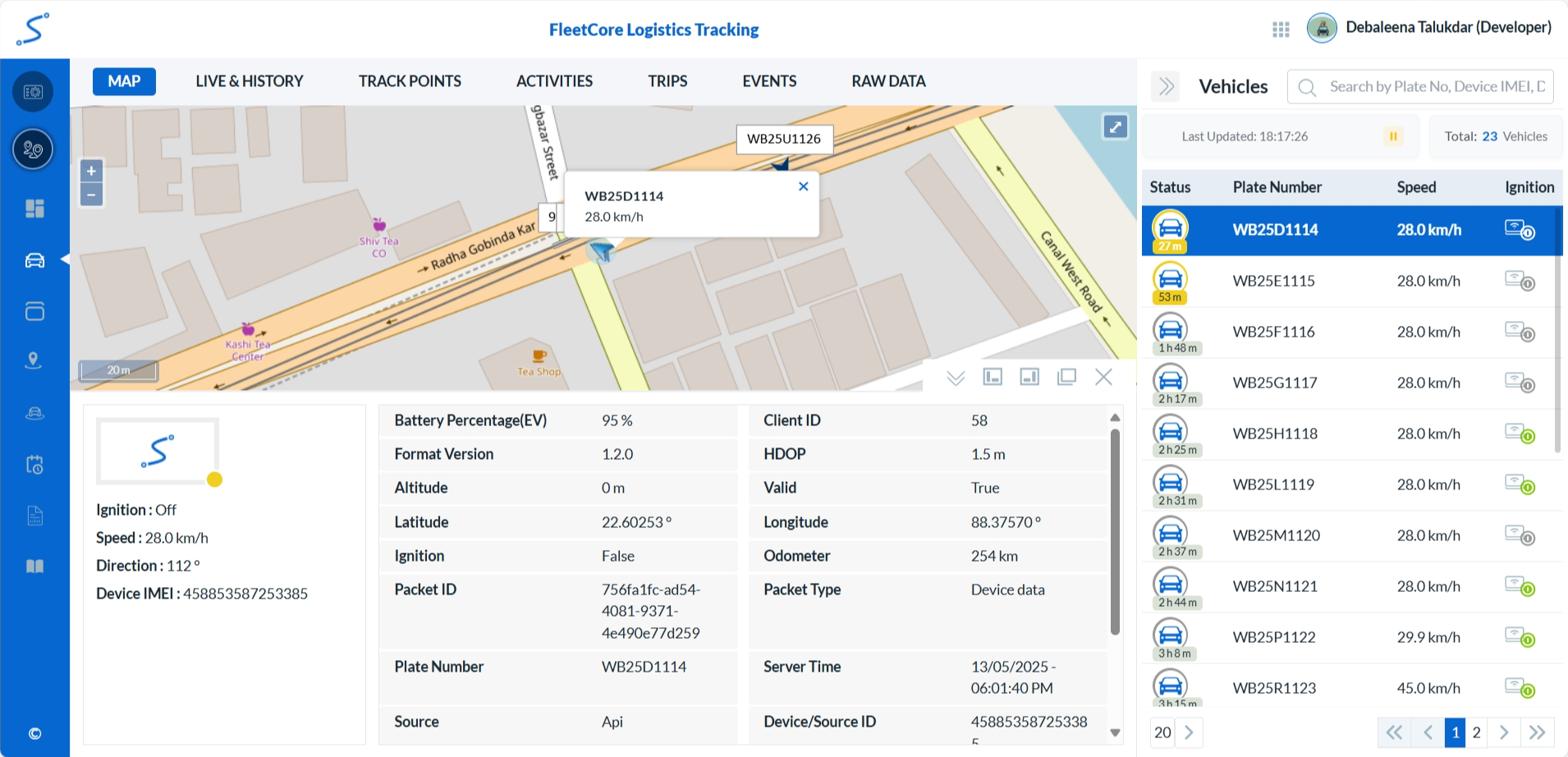
When a vehicle is selected from the list, the map zooms in and highlights it, showing detailed information along with its last known location and detailed information about that particular vehicle. If you see too many or too few data fields and wish to customize them, please contact your FMDP Administrator.
The selected vehicle is highlighted in the list. On the map, it is also marked with a light blue circular background. When you hover over the vehicle icon, its plate number and current speed are displayed.
To be Updated...
Vehicle Live & History
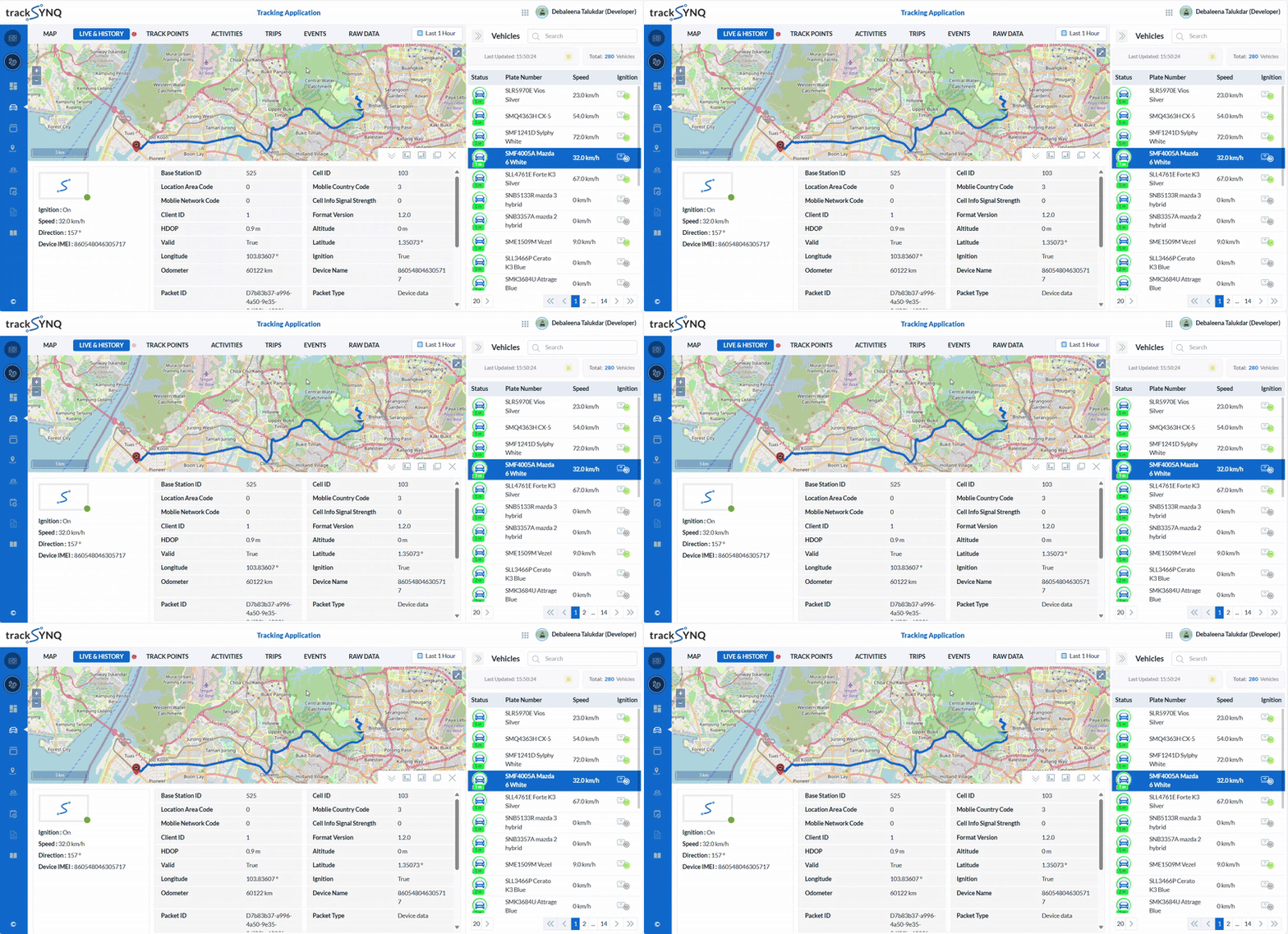
- Selecting a vehicle and the Live & History tab shows its current location on the map.
- Vehicle data (speed, direction, latitude, longitude, etc.) is displayed and auto-refreshed.
- A blinking red button beside the Live & History tab indicates that the vehicle is currently active.
- To view Live Data, you can select a time range: Last 1 Hour (default), Last 2 Hours, Last 6 Hours, Last 12 Hours, or Last 24 Hours.
- To view Historical Data, choose Custom Range from the calendar. For more details check Change Time Range.
To be Updated...
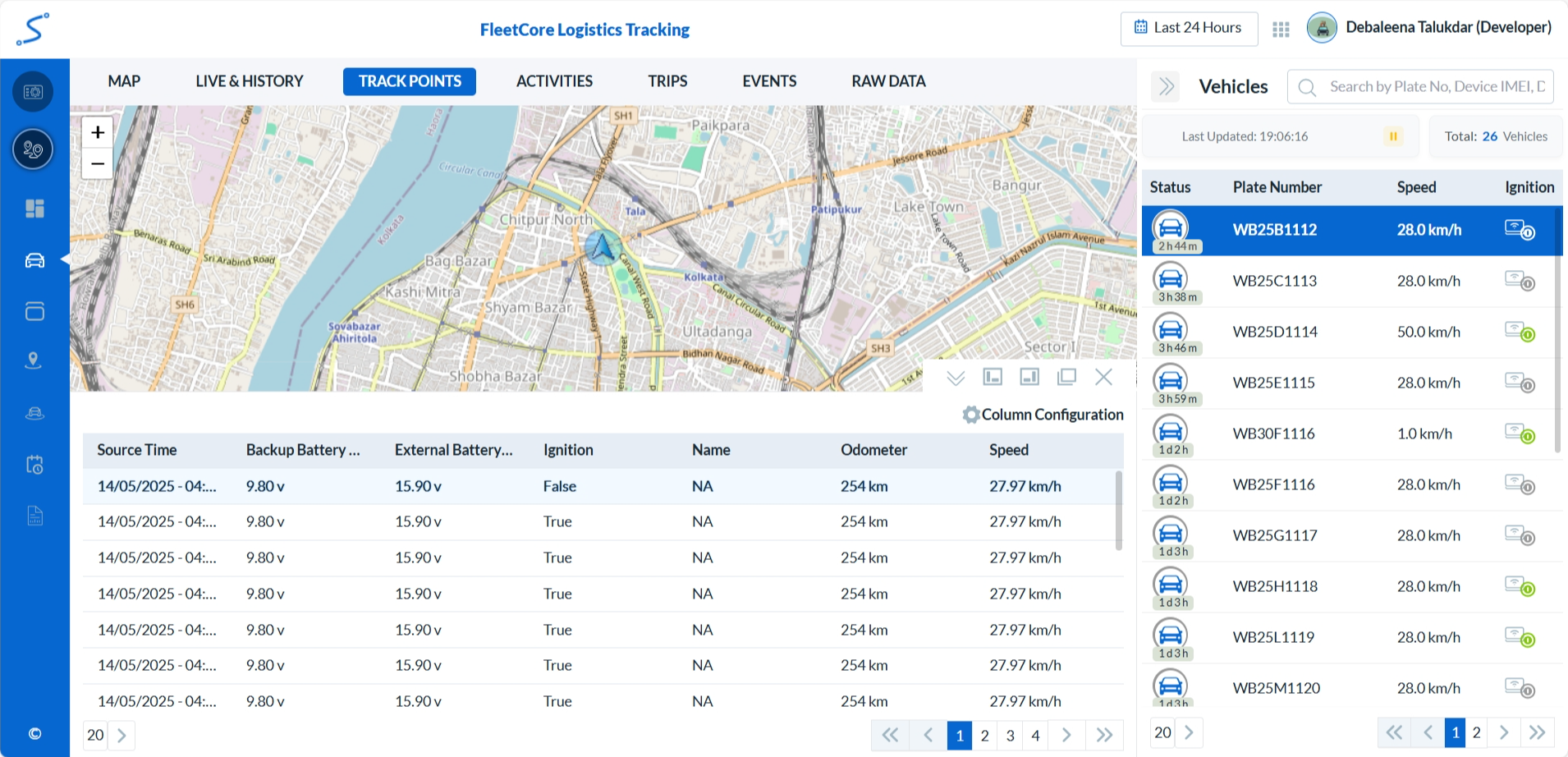
Vehicle Track Points
- Selecting a vehicle and opening the Track Points tab displays its most recent track point on the map.
- A list of all track points appears below the map, sorted with the latest first.
- Clicking a track point in the list highlights the corresponding row and displays its location on the map.
- Column Configuration lets you customize which data fields are to be shown in the track points table.
- Filter track points by a specific time or date range. Change Time Range
- Use Pagination to browse through all track points for the selected vehicle.
- Hovering over the vehicle on the map shows its latitude and longitude.
To be Updated...
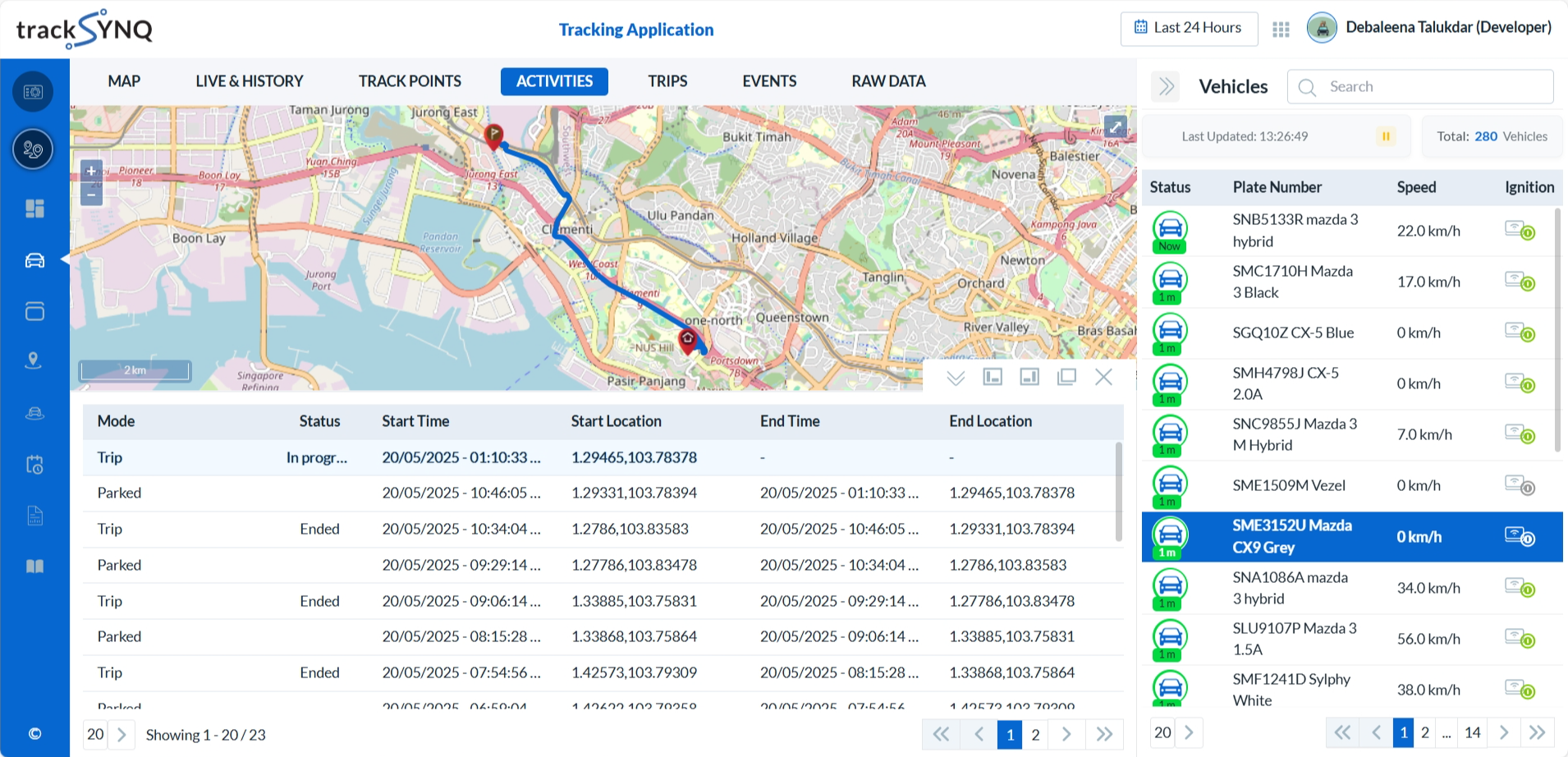
Vehicle Activities
- Selecting a vehicle and opening the Activities tab displays its most recent activity (Trip/Parked) on the map.
- A list of all activities appears below the map, sorted with the latest first.
- Clicking an activity in the list, highlights the corresponding row and displays it on the map.
- Filter activities by time or date range. Change Time Range
- Use Pagination to browse through all activities for the selected vehicle.
- Hovering over any point on the route shows address, coordinates, direction, and speed.
To be Updated...
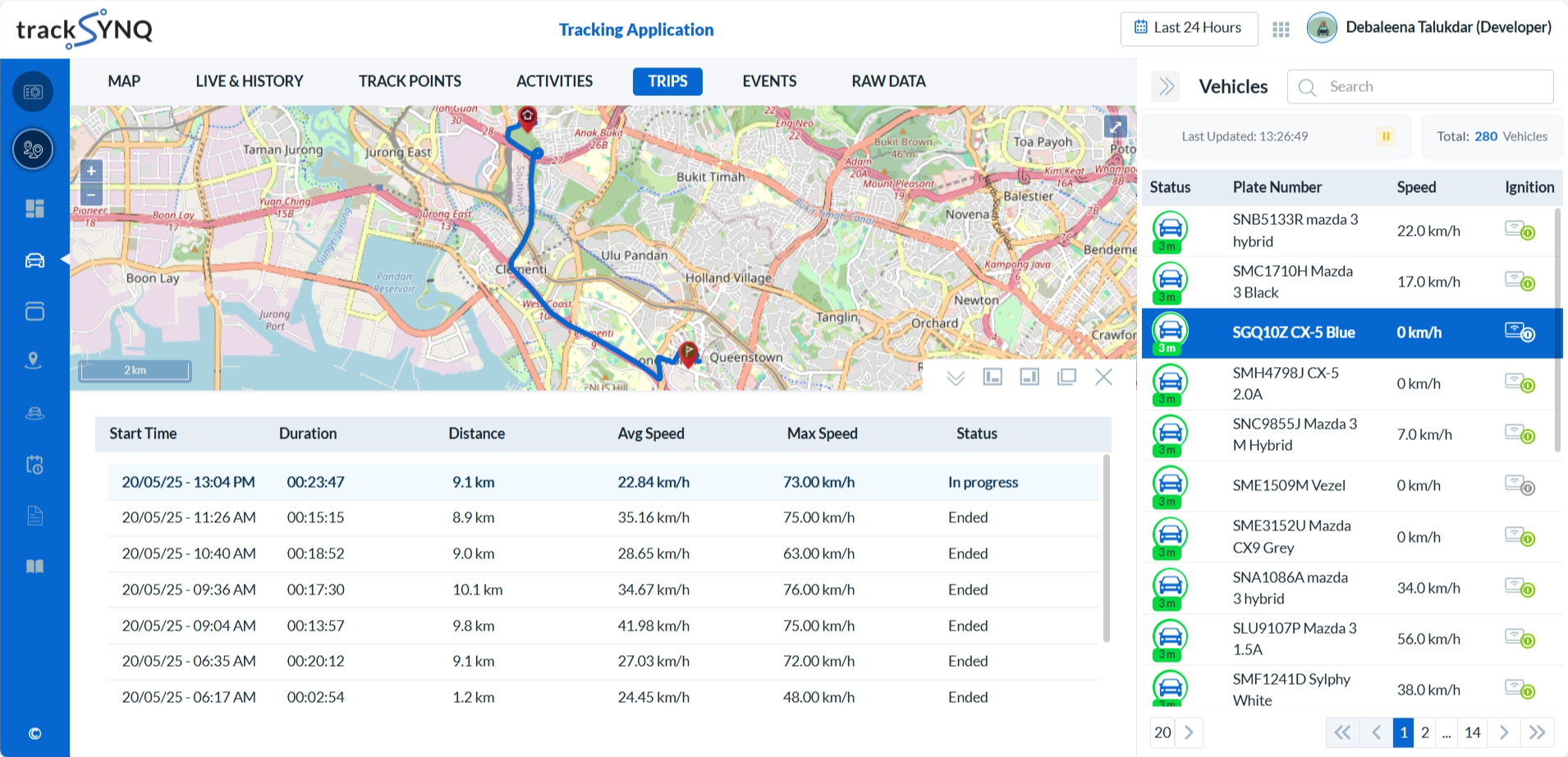
Vehicle Trips
- Selecting a vehicle and the Trips tab displays its most recent trip on the map.
- A list of all trips appears below the map, sorted with the latest first.
- Each trip shows whether it's in progress or completed.
- Clicking a trip in the list, highlights the corresponding row and displays it on the map.
- Filter trips by time or date range. Change Time Range
- Use Pagination to browse through all trips for the selected vehicle.
- Hovering over the route shows address, coordinates, direction, and speed.
To be Updated...
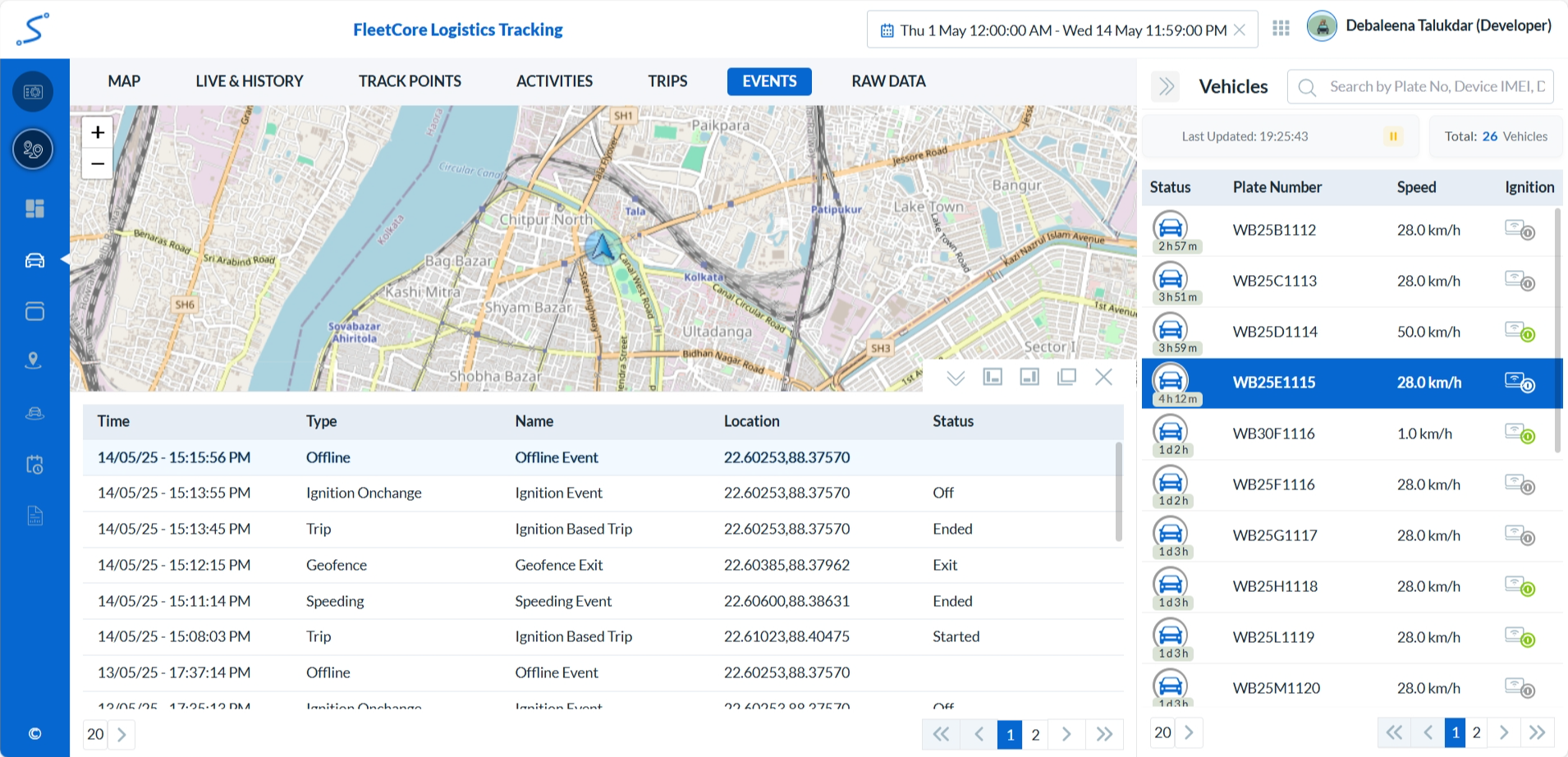
Vehicle Events
- Selecting a vehicle and opening the Events tab displays its most recent event on the map.
- A list of all events appears below the map, with the latest shown first.
- Each event shows the time, name, and type (e.g., Geofence, Low Battery, Speeding).
- Clicking an event in the list, highlights the corresponding row and displays its location on the map.
- Filter events by specific time or date range. Change Time Range
- Use Pagination to browse through all events for the selected vehicle.
- Hovering over the vehicle shows its latitude and longitude on the map.
To be Updated...
Vehicle Raw Data
- Selecting a vehicle and opening the Raw Data tab shows all raw data packets for the selected vehicle.
- Each entry displays the Packet ID and the time when the packet was received by the server.
- Filter by time or date range. Change Time Range
- Use Pagination to browse browse all raw data entries.
To be Updated...
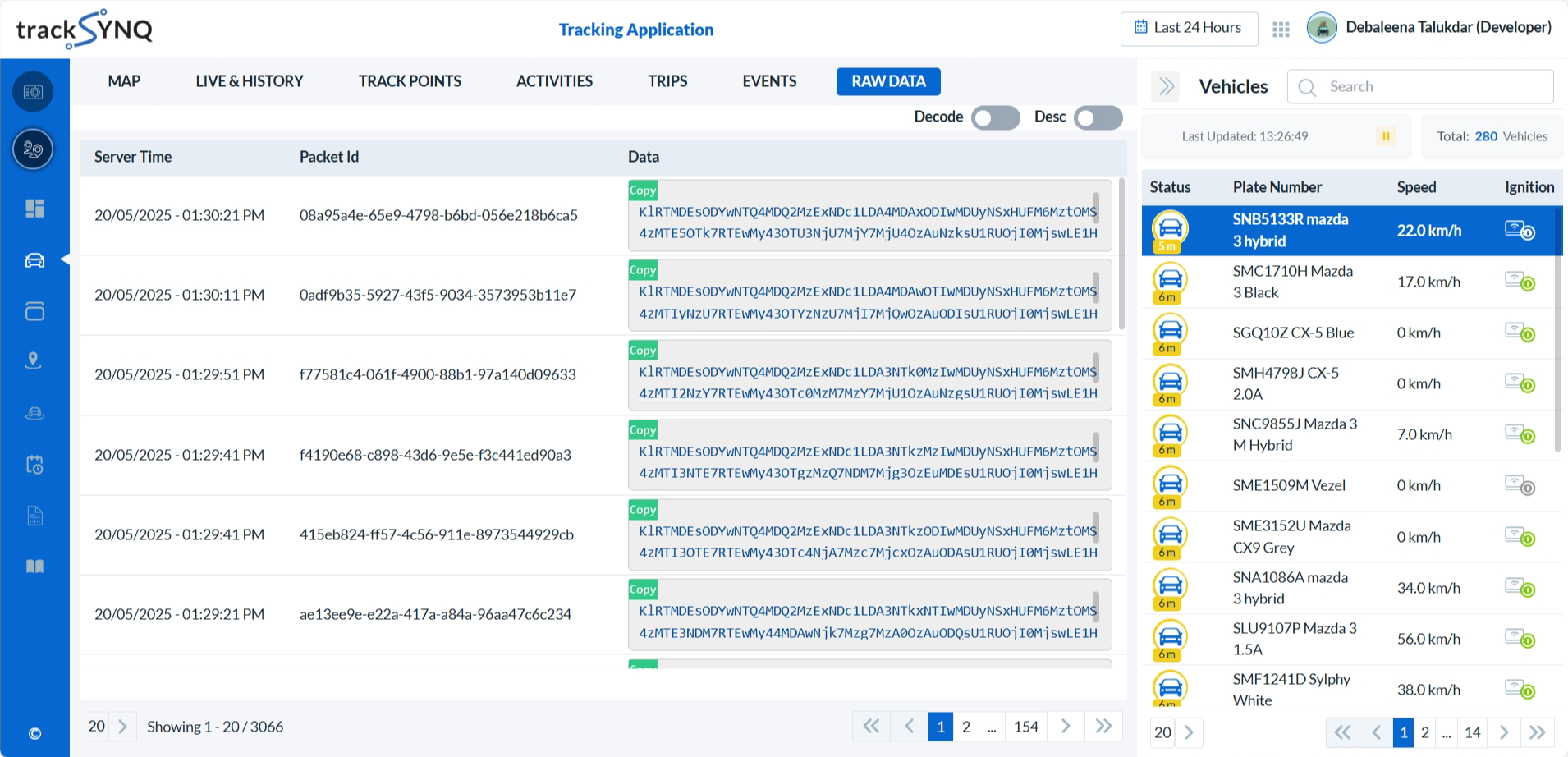
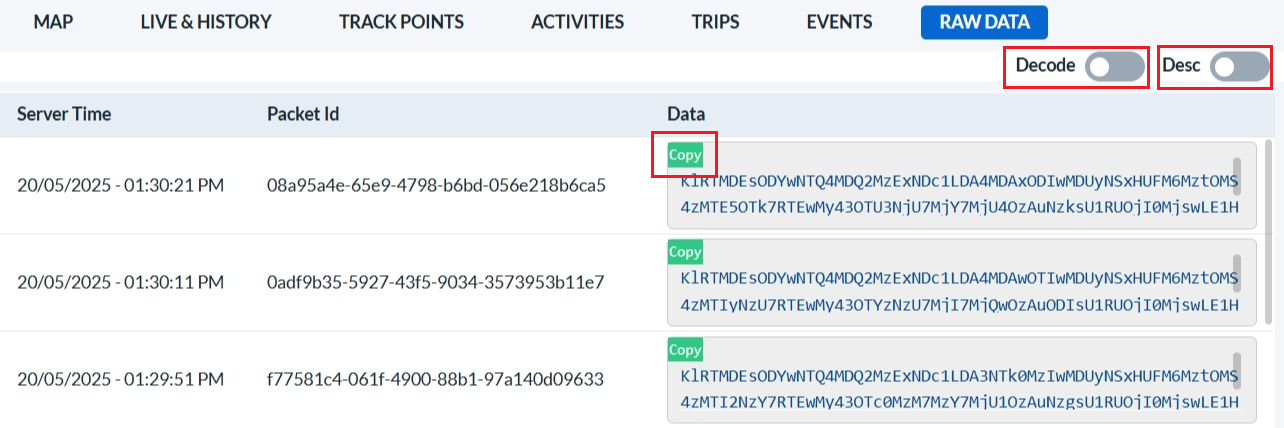
- Click Decode to view decoded packet content, or Copy to copy the data.
Decoding is only possible if the data is in text format, and not in binary form.
- Data is listed with the latest on top by default. Use the Desc toggle to sort chronologically.