Dashboard
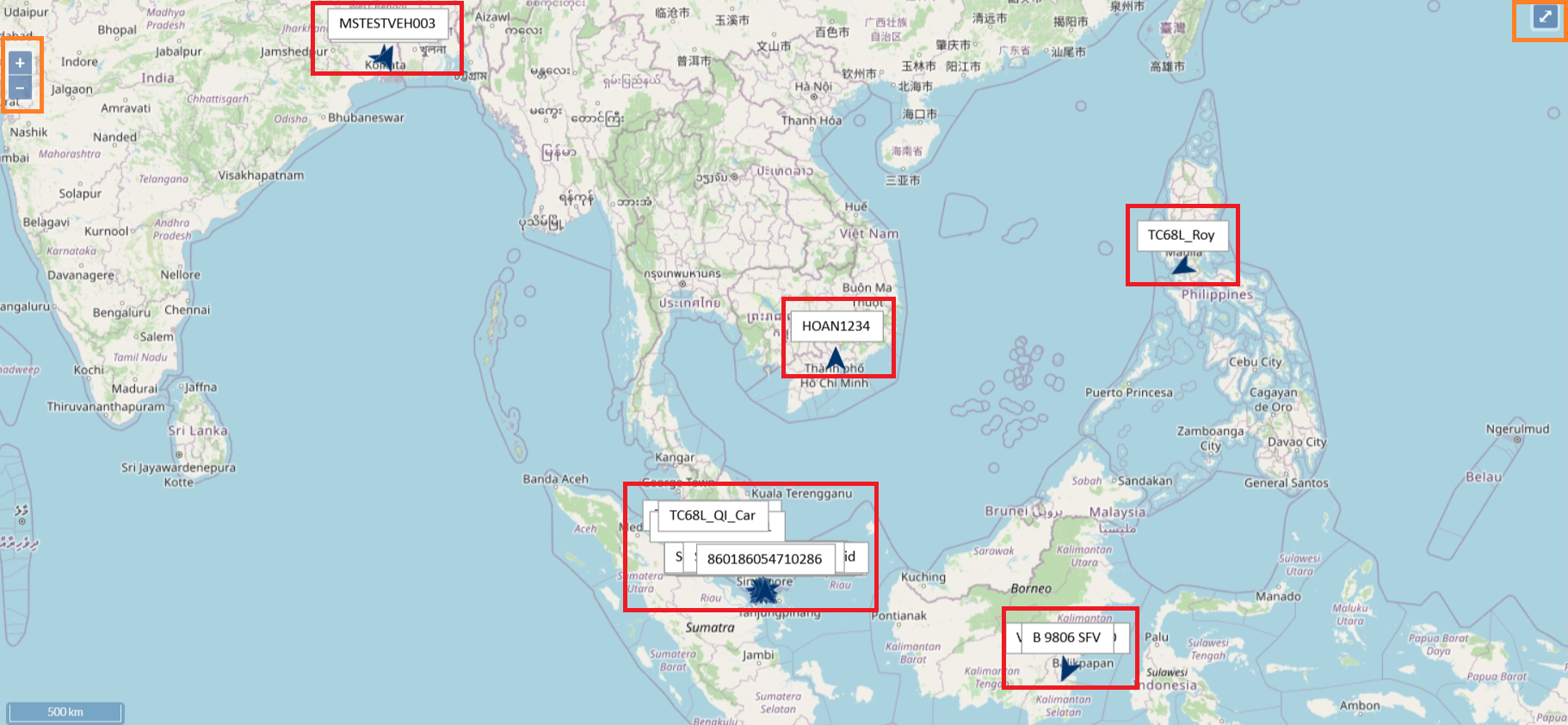
Displays all the vehicles on a Map.
To be Updated...
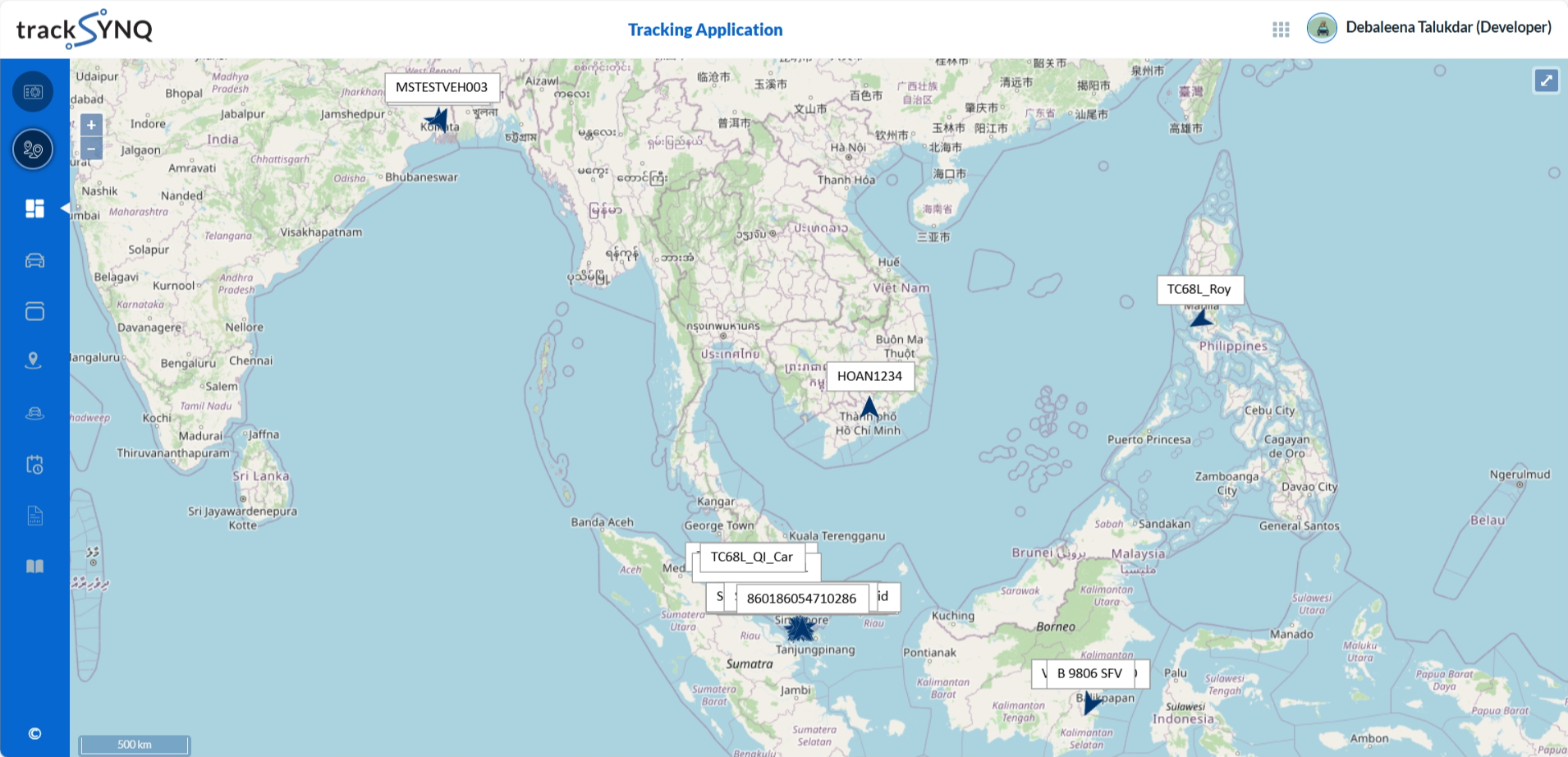
Navigation
If you have access, you can navigate to the Management Portal (highlighted in yellow).
The Tracking Portal icon is highlighted in pink, indicating you're currently logged into it.
The Dashboard icon (highlighted in green), showing your current page.
Use the left navigation menu to access other pages like Vehicles, Devices, Trips, Activities, Events, and Reports (highlighted in white).

Map Features
- Displays the Vehicle Plate Numbers (highlighted in red).
- You can zoom in/out using the + - buttons present on the top-left of the map (highlighted in orange).
- You can view the full screen map by clicking on the expand icon present on the top-right on the map (highlighted in orange).