Activities
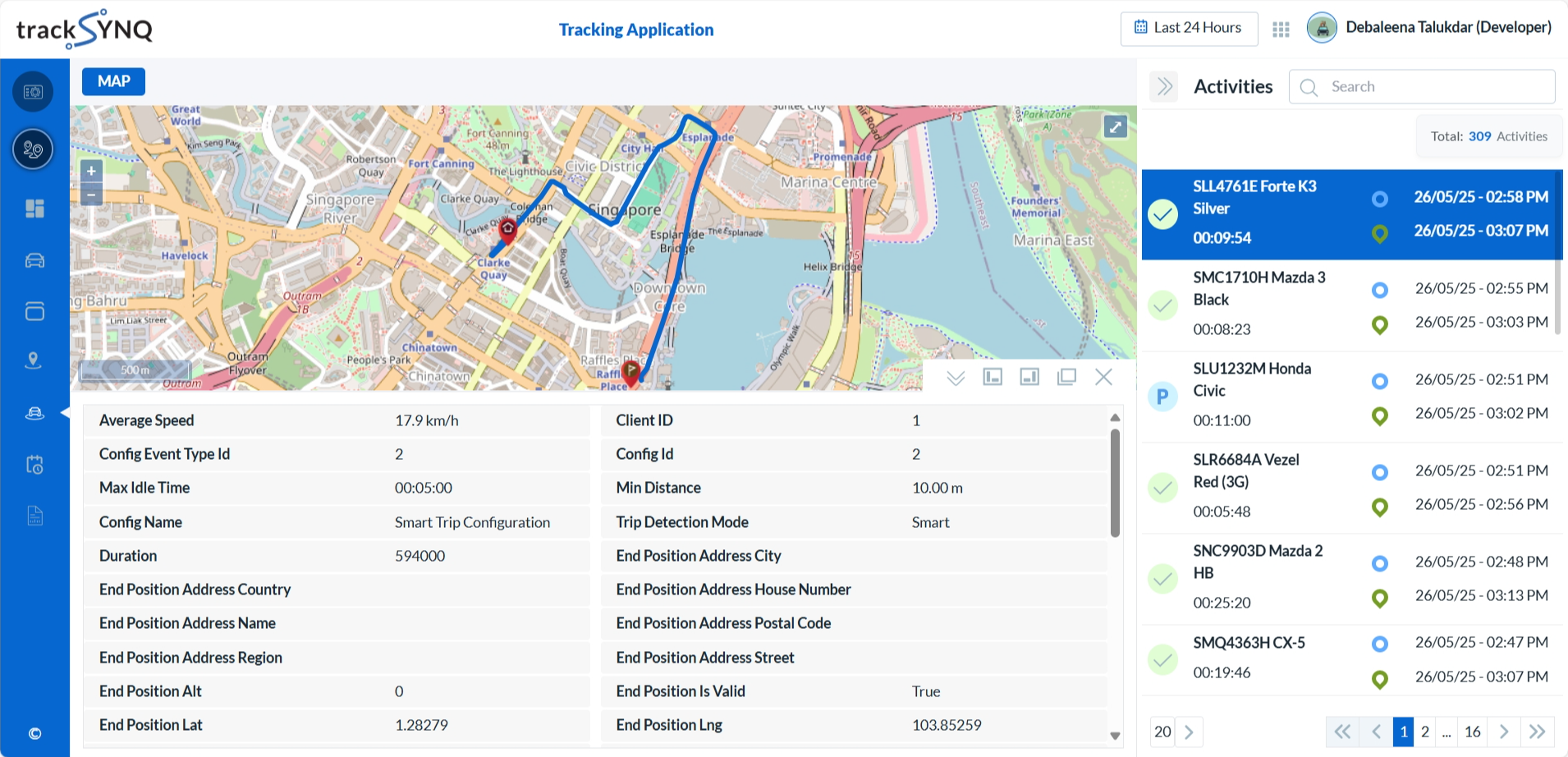
After logging into the Tracking Portal, select Activities from the left navigation panel. This page displays a comprehensive list of all vehicle activities along with detailed information. When an activity is selected, the vehicles's activities get displayed on the map.
To be Updated...
Overview
The Activities section provides a comprehensive overview of all the activities across your fleet.
- You can filter the activities by time or date range. Change Time Range
- You have Two layout choices for a customizable viewing experience.
Activities List
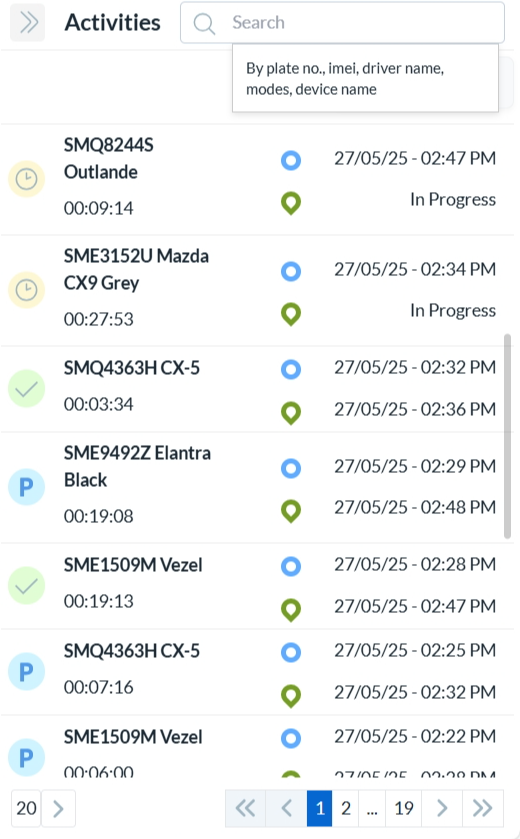
All the activities (trip or in parked) are listed, with the most recent activity displayed first.
Pagination controls at the bottom of the page allow you to navigate through the list.
You can search activities by:
Vehicle - Plate Number
Device - Name or IMEI
Driver - Name (if available)
Activity - Modes (Trip/ Parked)
Click any activity to view its detailed information.
Each activity from the list displays:
The vehicle's plate number associated with the activity.
The activity status - In Progress or P for Parked or Tick Mark for Trip.
Start time and the end time (if available) of the activity.
The time taken to complete that activity.
Activities Map
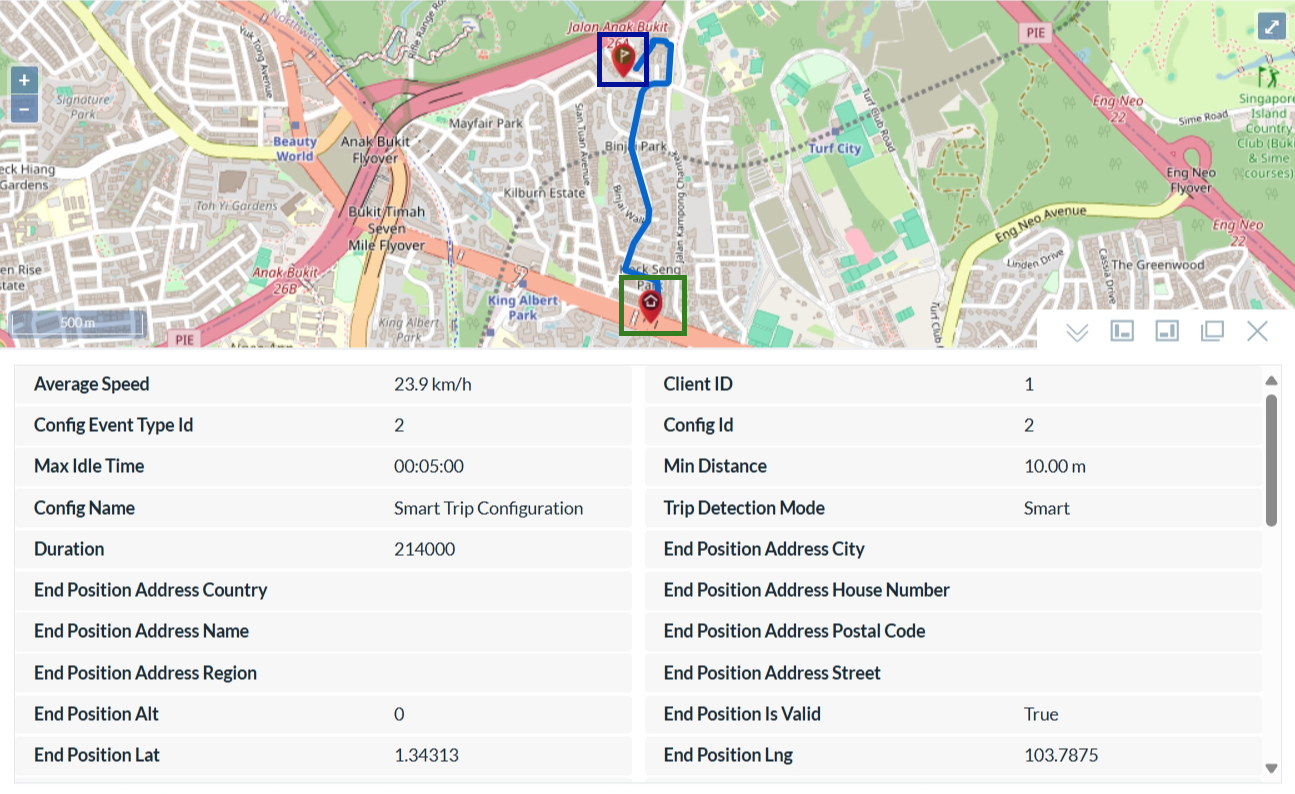
- When we select a activity from the list, the activity gets displayed on the map with the activity details listed below.
- The red Home icon highlighted with green box is the start point of the activity.
- The red Flag icon highlighted with blue box is the end point of the activity.
- Hovering over the route shows Address(if available), Latitude, Longitude, Direction, and Speed.
- Five map view options to suit different user preferences.
To be Updated...