Map Views and Layout Settings
Overview
Customize the interface to suit your preferences with flexible display options:
- Choose from five different Map Views for various visualization needs.
- Switch between two UI Layouts to match your workflow.
Map Views
We support five different map views - Minimised View, Bottom View, Left View, Right View, Pop-out View, for the Vehicles, Devices, Trips, Activities and Events screen. This enables the users to select the visualization that best fits their needs.
1. Minimised View
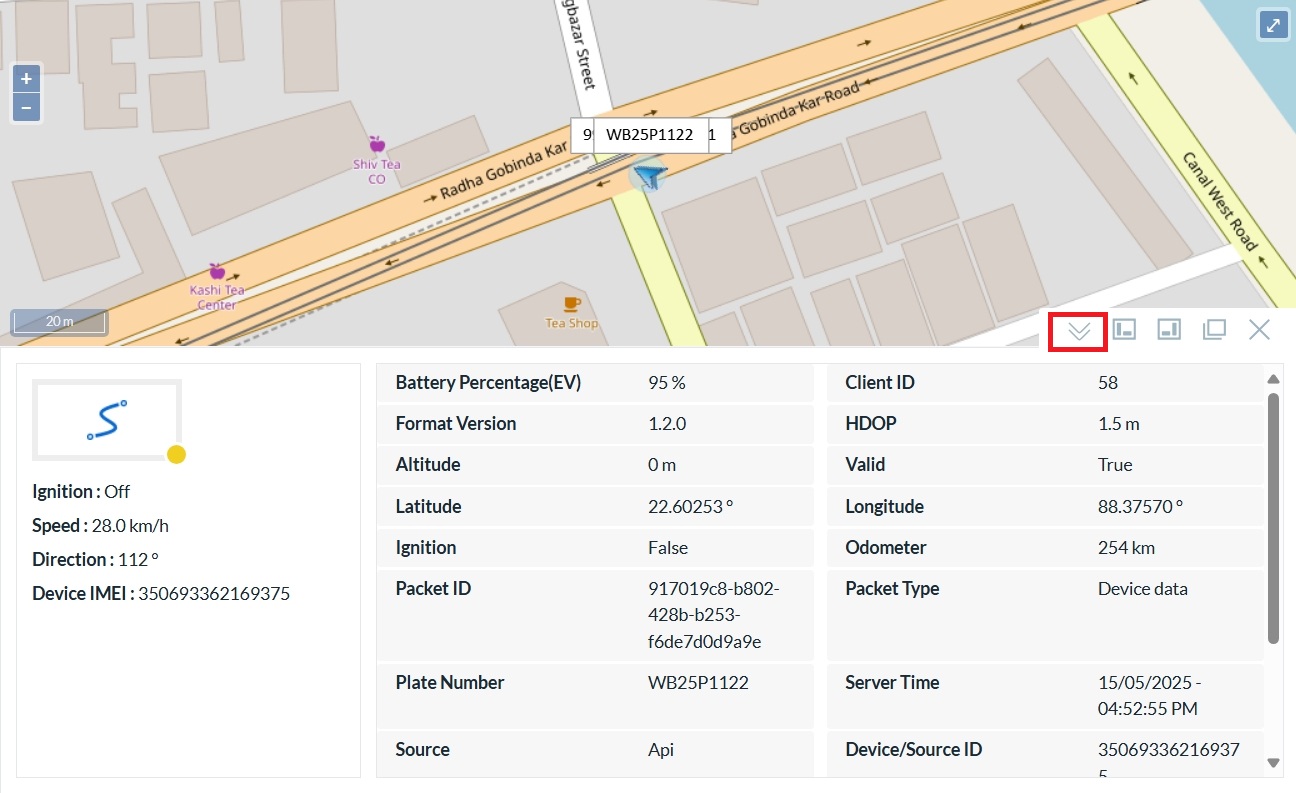
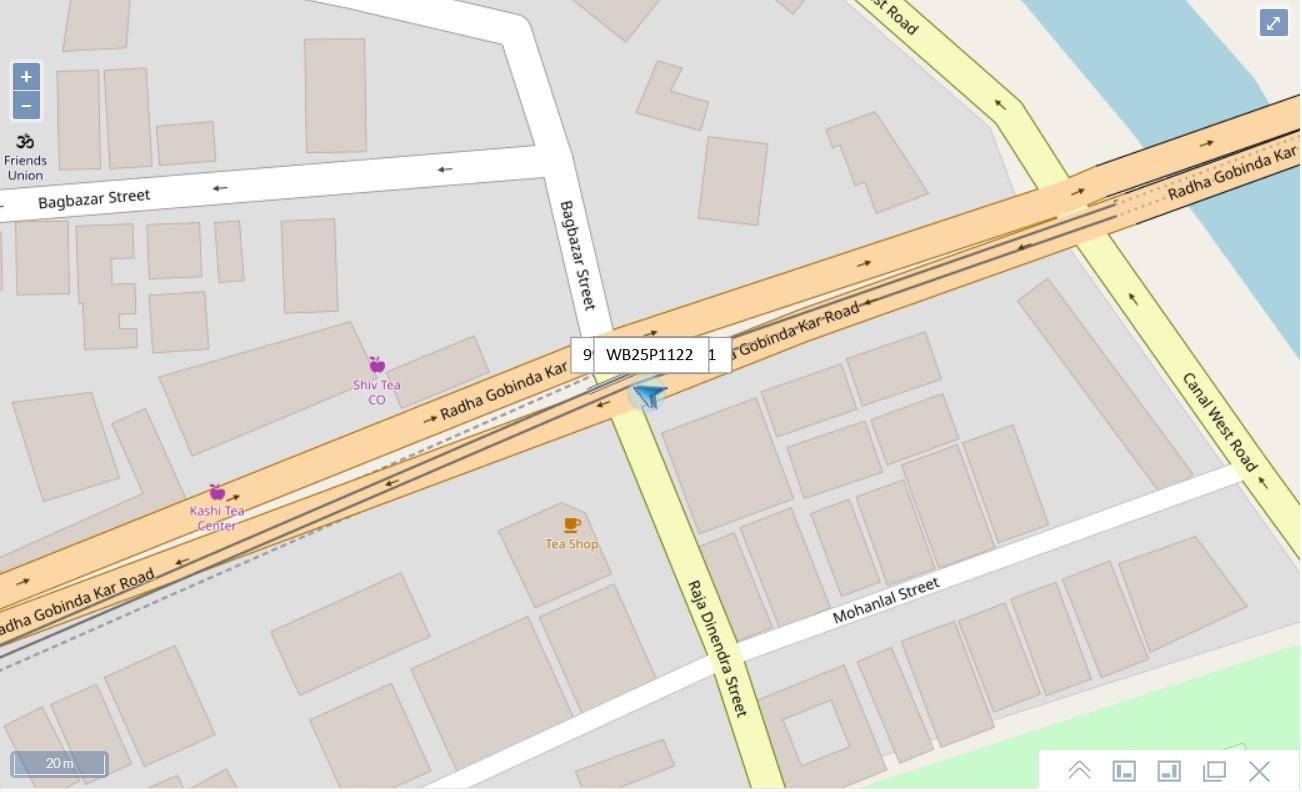
To access the Minimised View, click the Minimised button highlighted by the red box in the left image below.
2. Bottom View
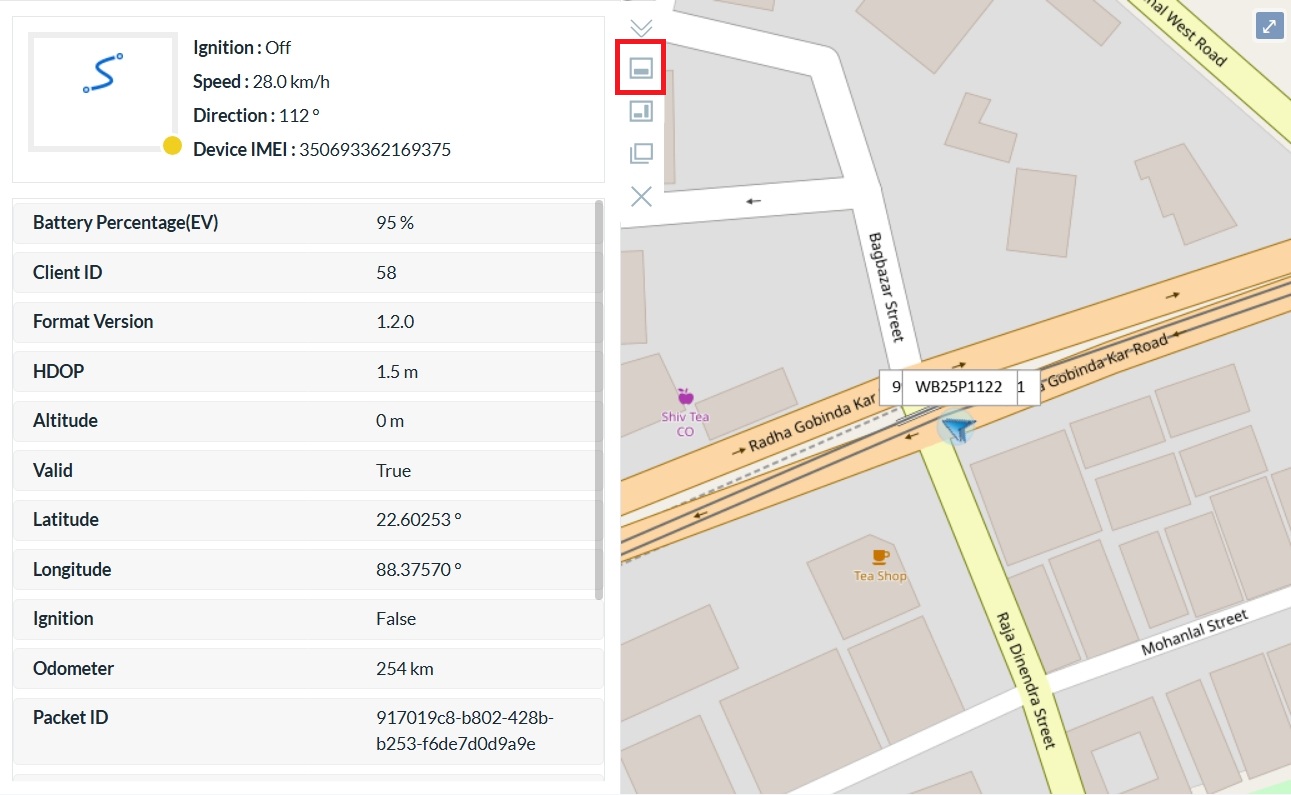
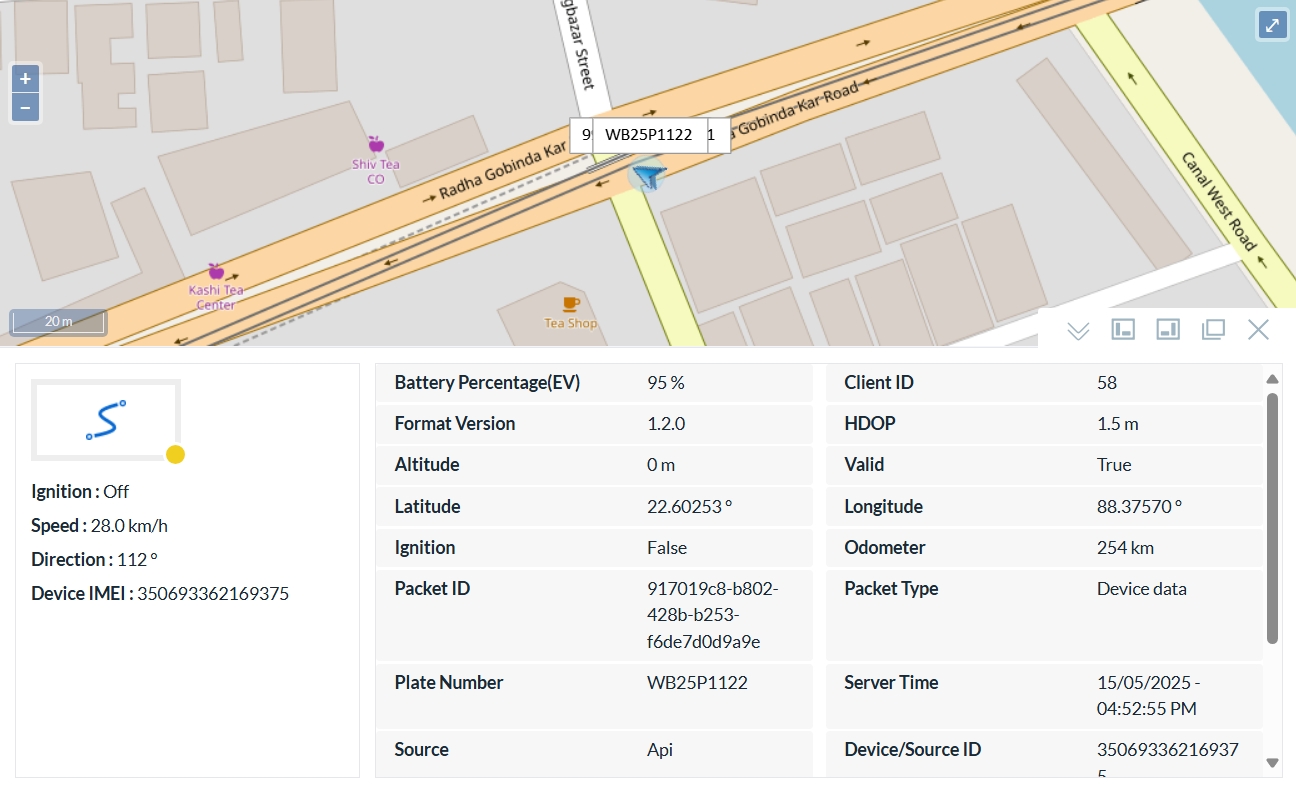
To access the Bottom View, click the Bottom button highlighted by the red box in the left image below.
3. Left View
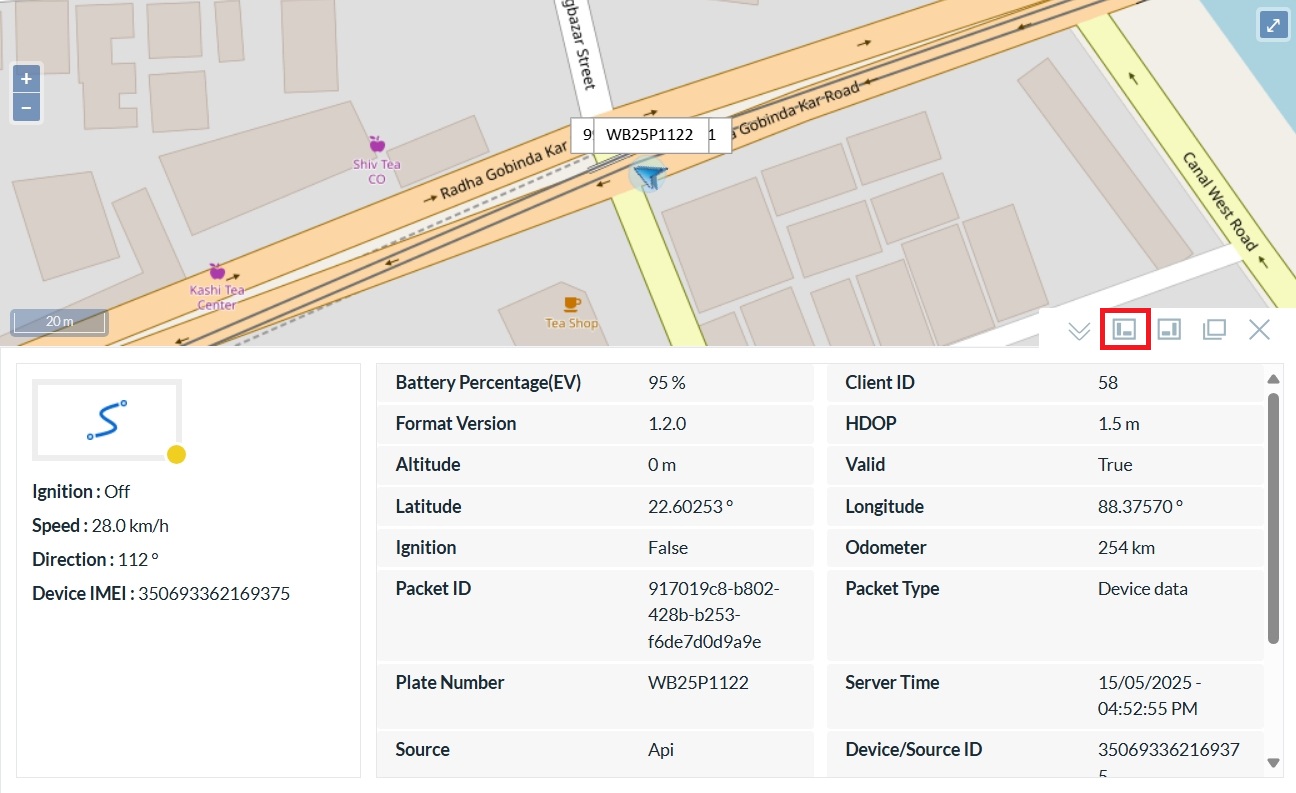
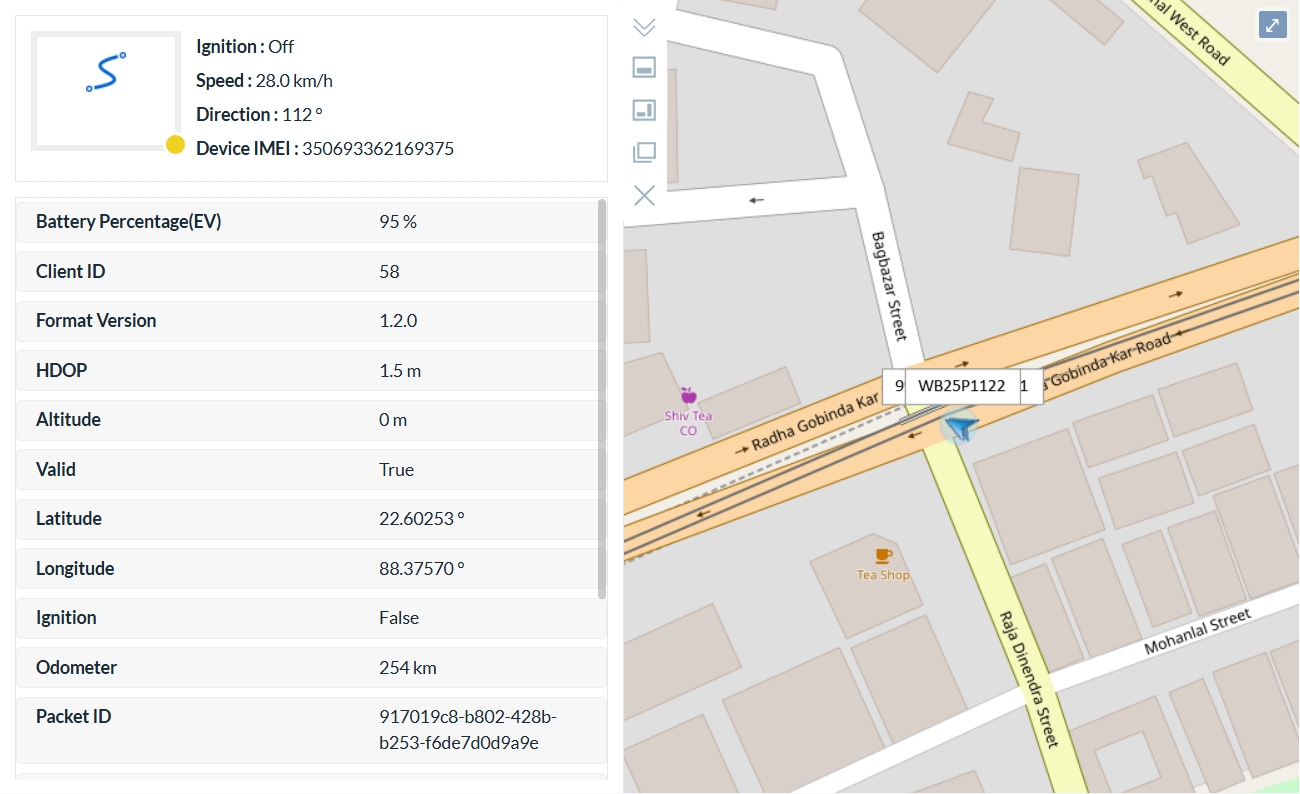
To access the Left View, click the Left button highlighted by the red box in the left image below.
4. Right View
To access the Right View, click the Right button highlighted by the red box in the left image below.
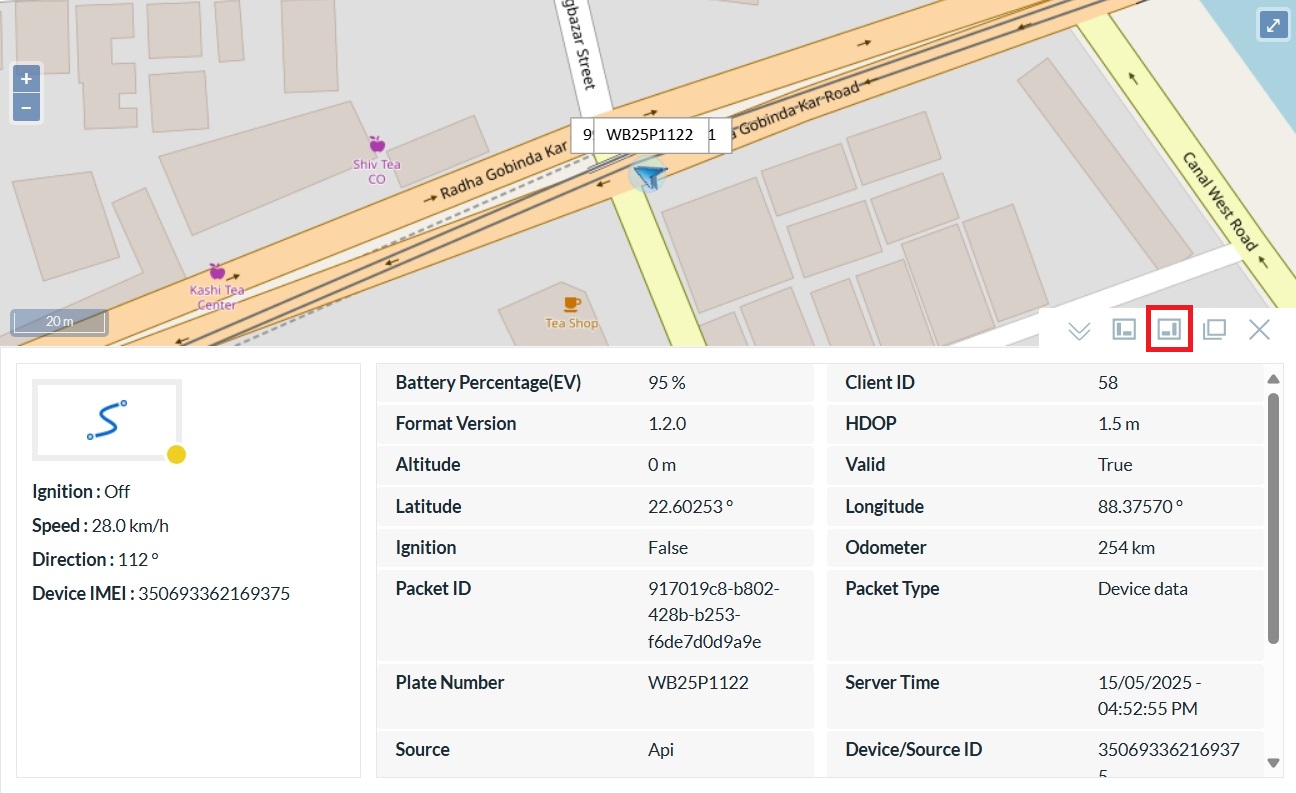
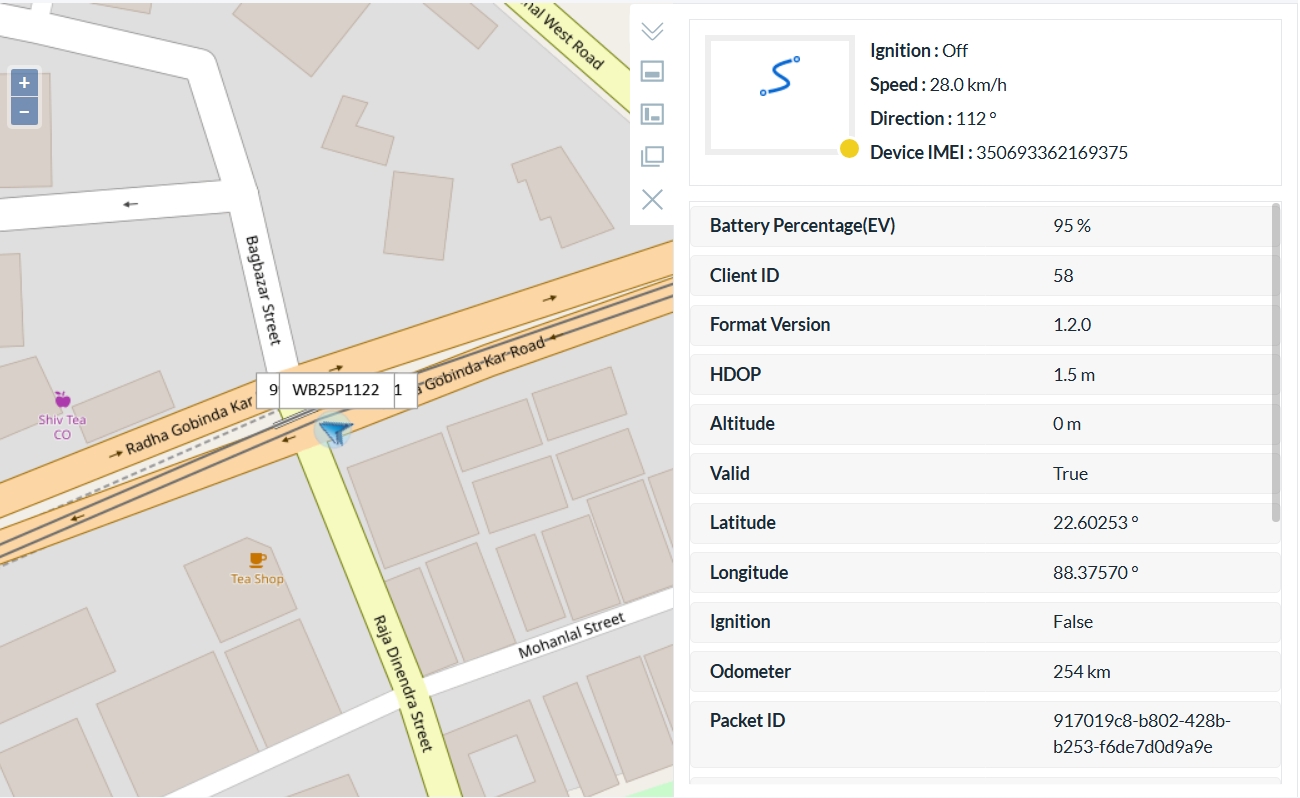
5. Pop-out View
To access the Pop-out View, click the Pop-out button highlighted by the red box in the left image below.
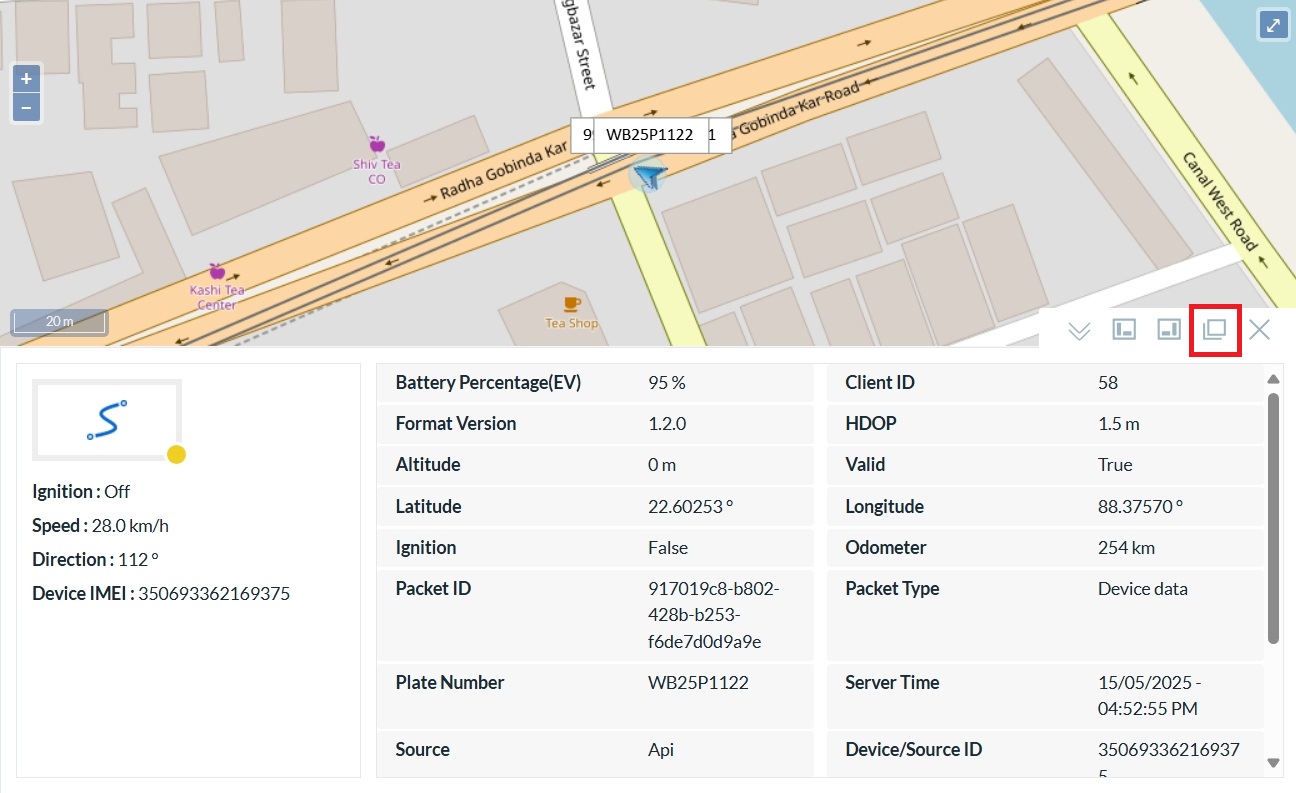
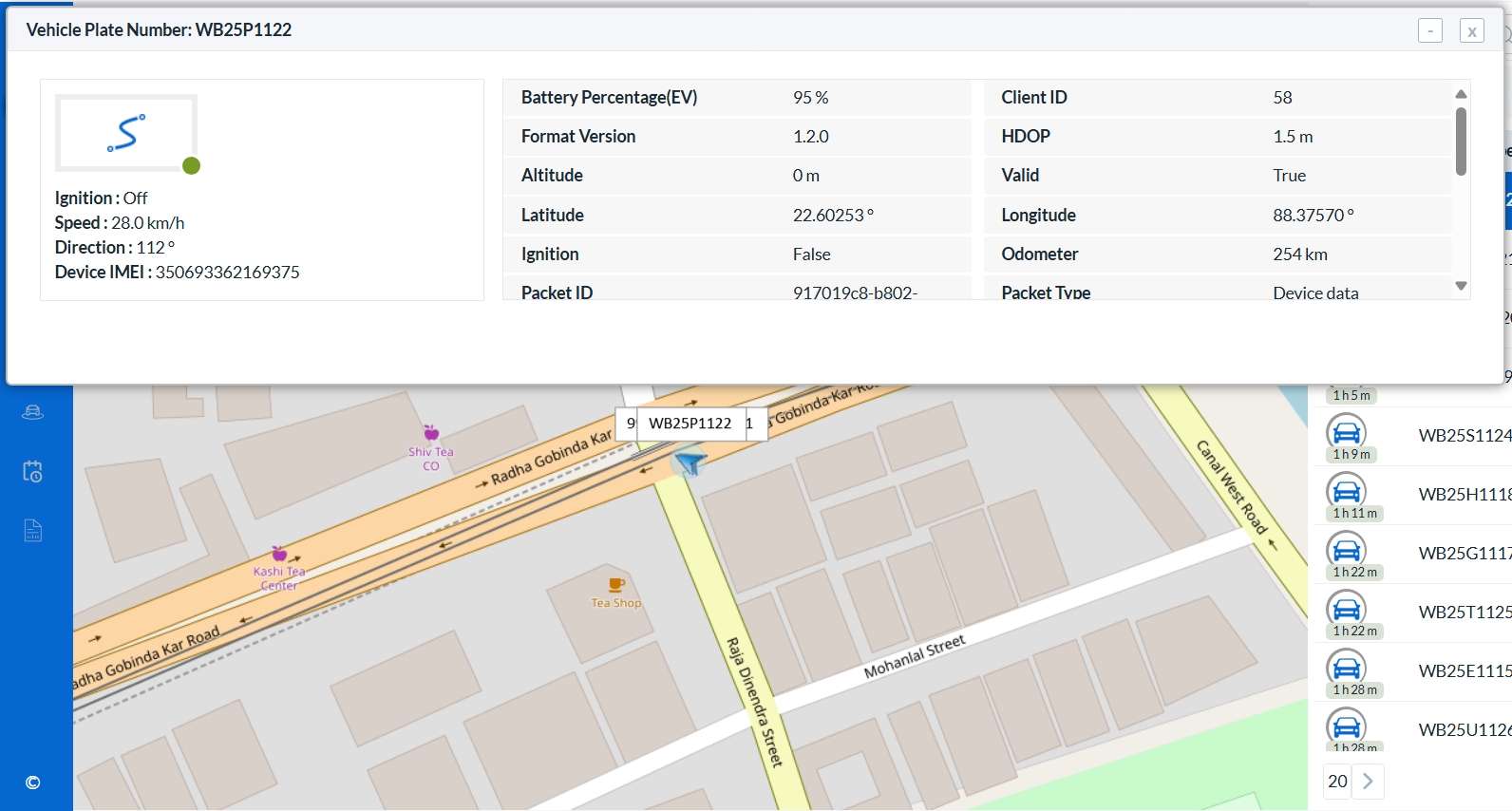
Layout Settings
Default Layout
By default, the data list appears on the right side of the screen, while the map is displayed on the left.
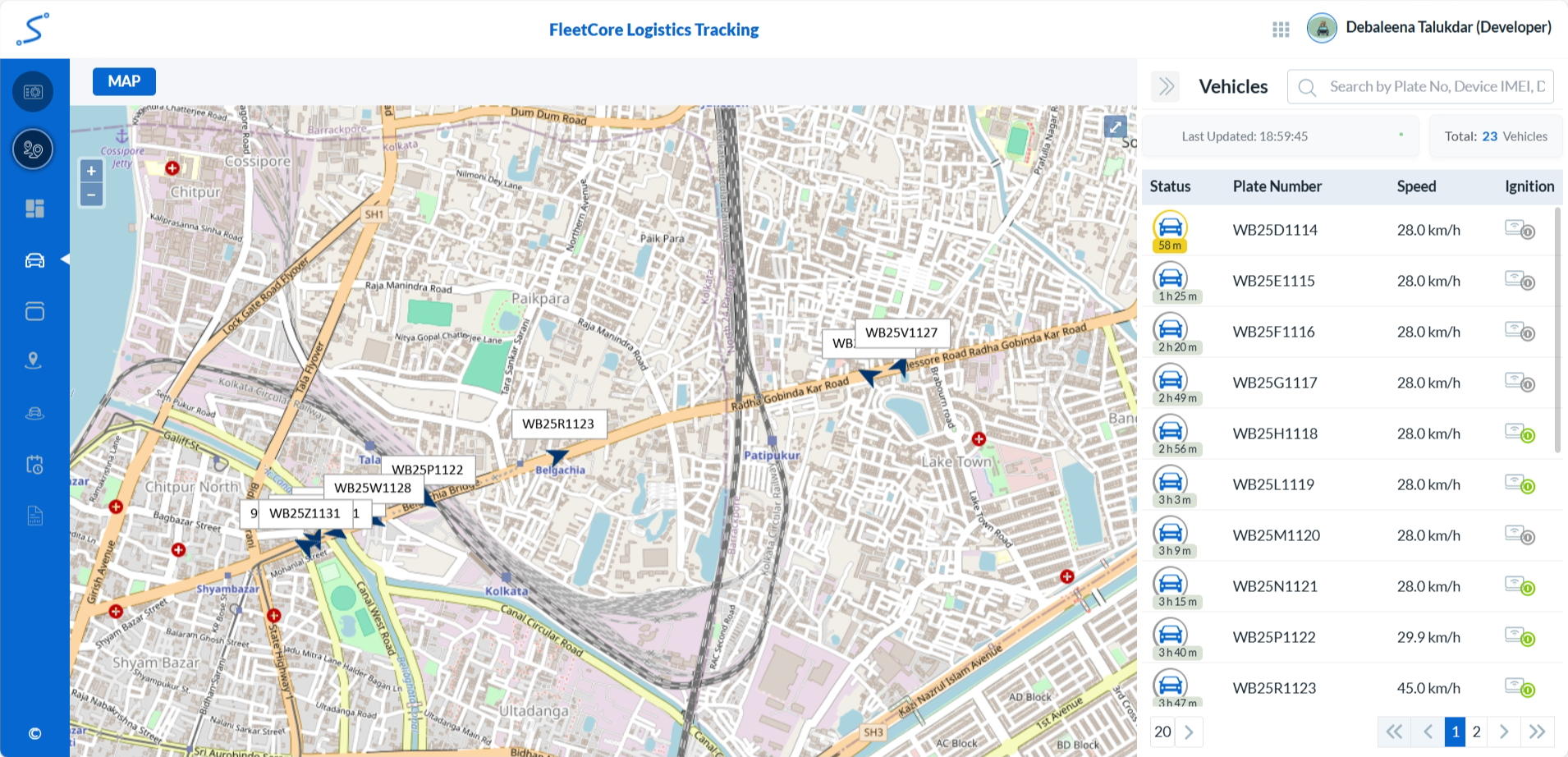
Alternative Layout
You can switch to an alternative layout where the data list is shown on the left and the map is displayed on the right.
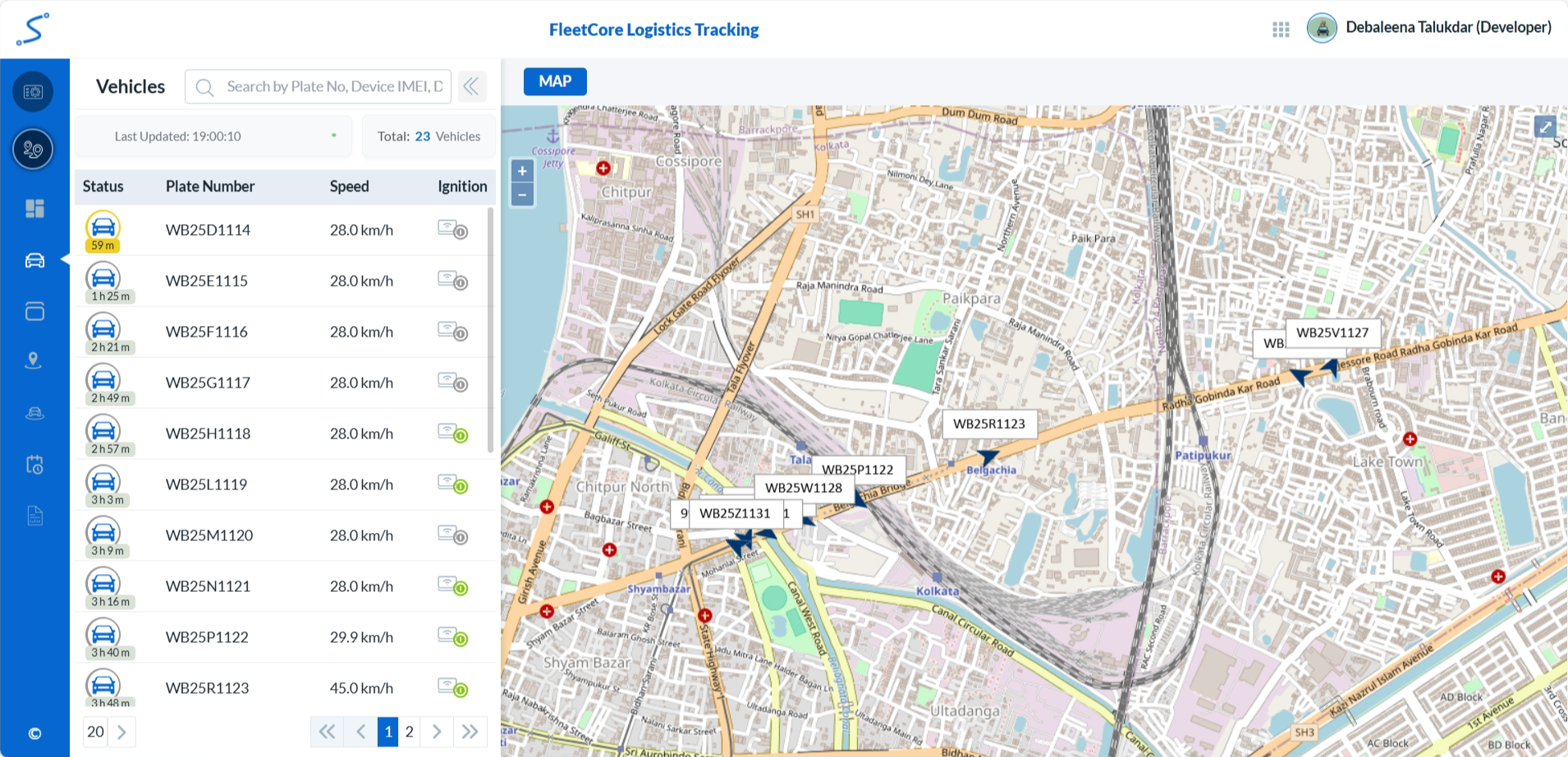
How to change between Layouts?
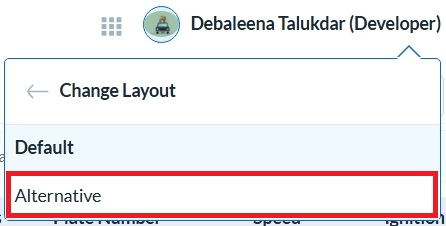
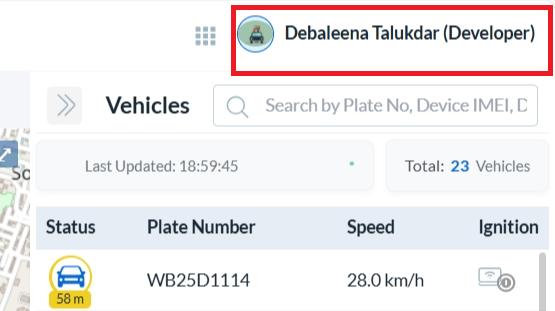
- Click your Name in the top-right corner of the screen.
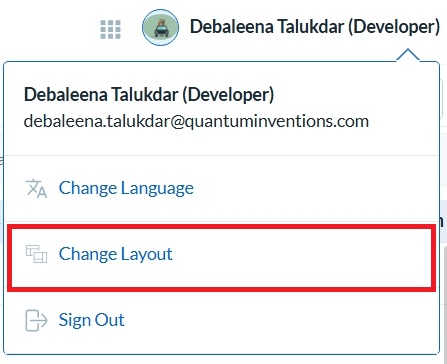
- Select the Change Layout option from the dropdown menu.
-
A list of layout options - Default and Alternative will appear. The currently active layout will be highlighted.
-
Click the layout you want to switch to.