Localizations
After logging into the Super Admin Portal, select Configurations from the left navigation panel and choose the Localizations sub-tab. This page allows administrators to view, create, manage, and delete the Localizations.
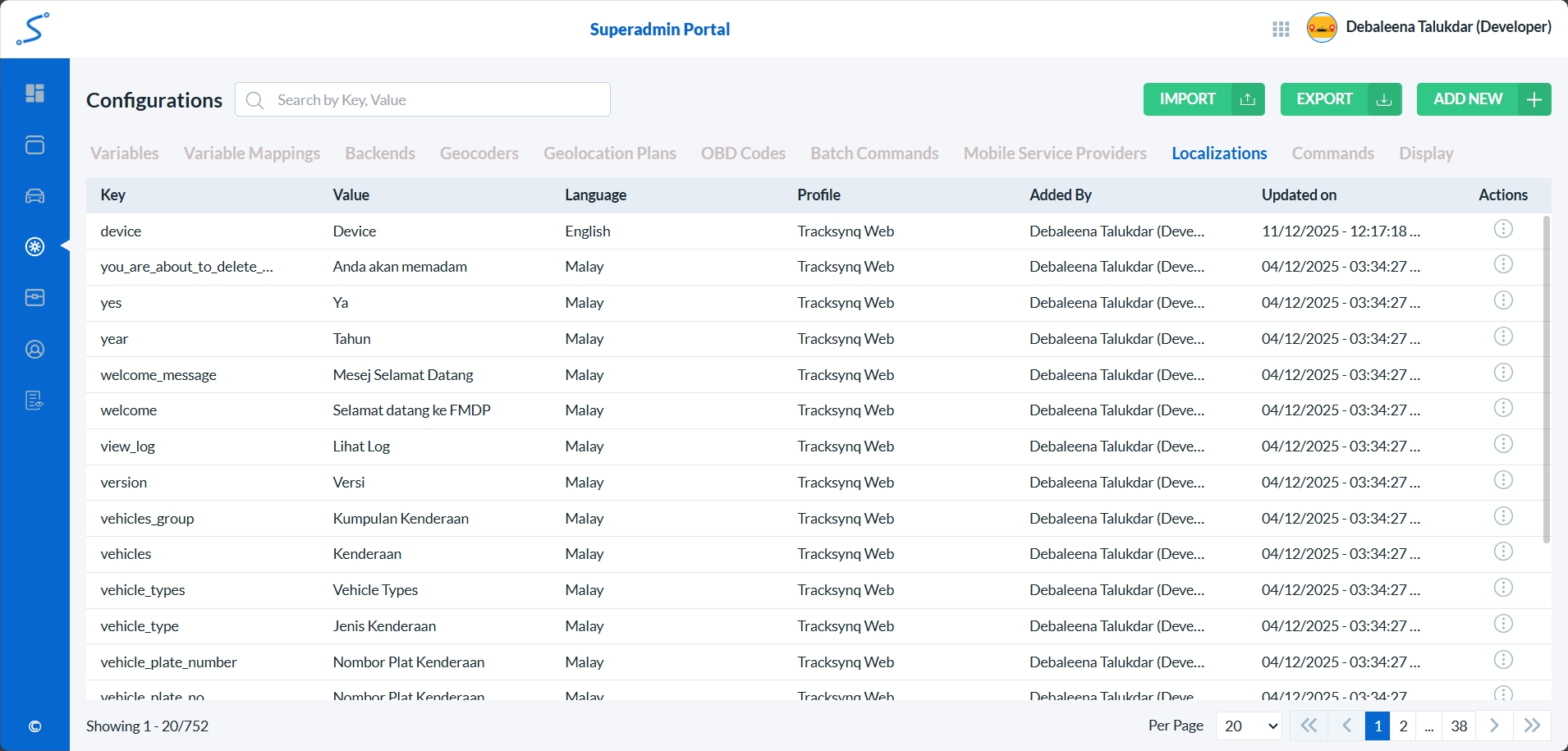
Localizations List
Localizations are listed in reverse chronological order — the most recently created localization appears at the top.
Use the Pagination controls at the bottom of the page to navigate the list.
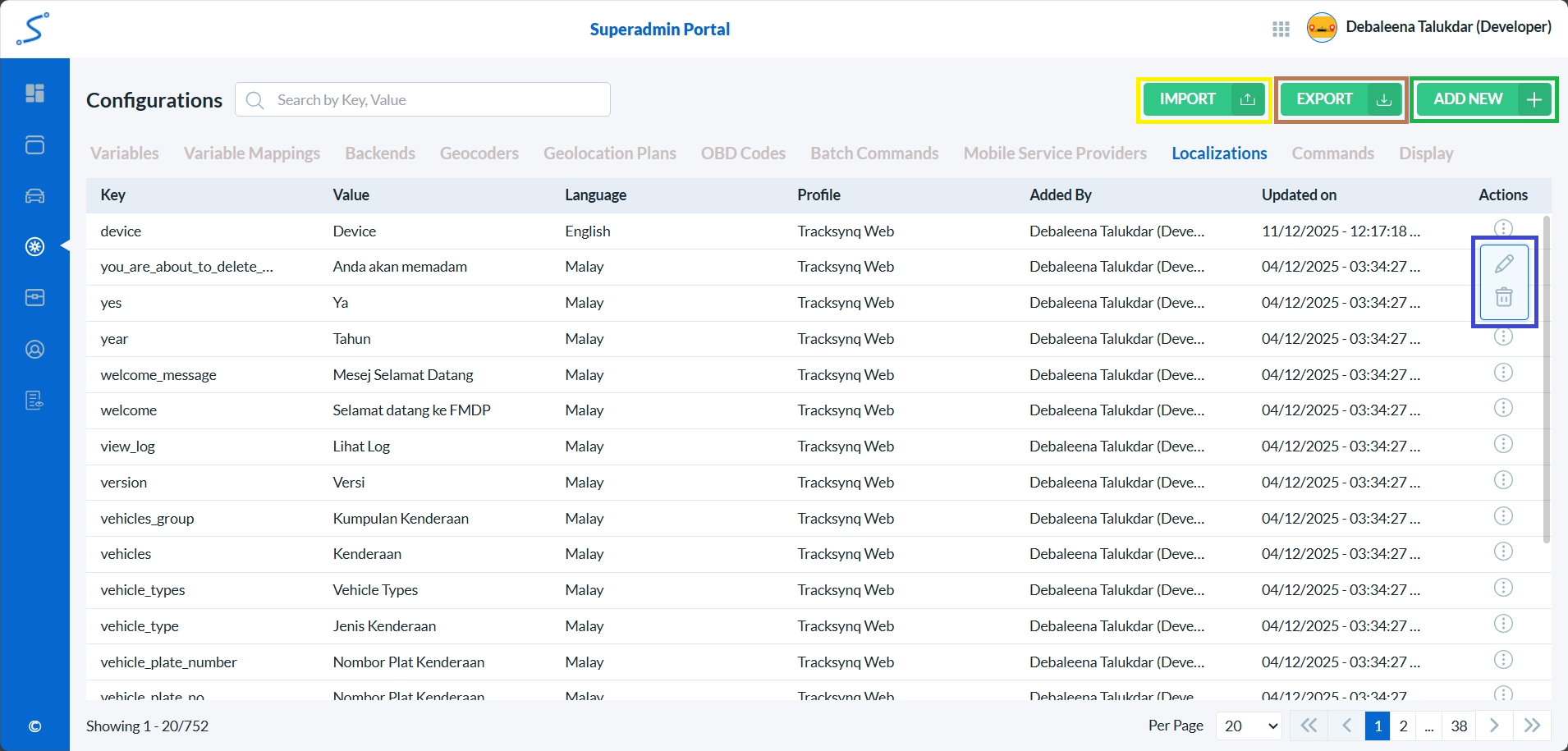
To add a new Localization, click on the Add New button. (highlighted with a green box)
To import Localization, click on the Import button. (highlighted with a yellow box)
To export Localization, click on the Export button. (highlighted with a brown box)
To edit a Localization or view its audit trail or delete it, click on the corresponding icon in the Actions column (highlighted with a blue box).
To edit or view the details of a Localization click on the first icon.
To delete a Localization click on the second icon.

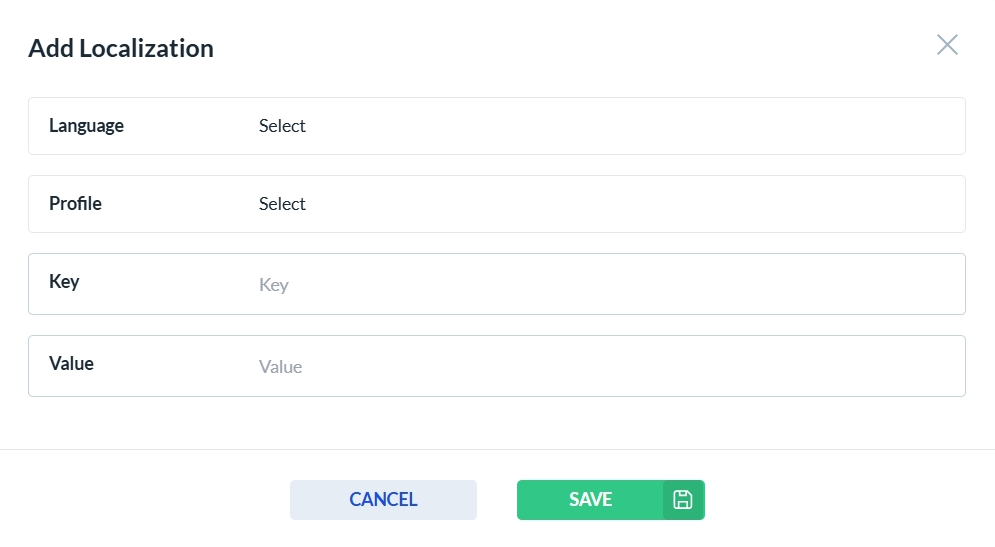
Add New Localization
To add a new Localization, click the Add New button. This will open the Localization form. Complete all required fields, then click Save to store the new Localization or Cancel to discard your changes.
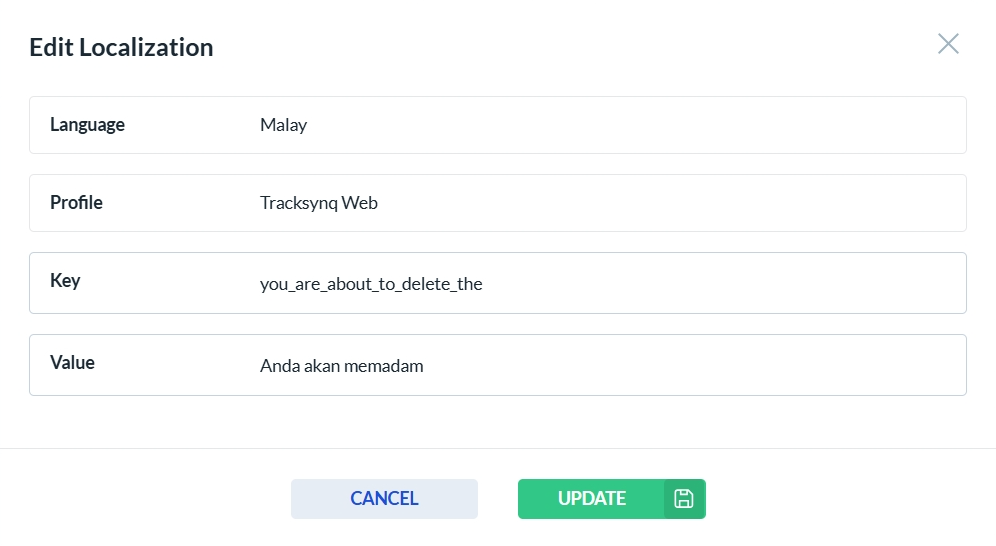
Localization Edit
After clicking the edit icon in the Actions column, the Localization form opens. Only the fields that are enabled can be edited—disabled fields are read-only. Click Update to save your changes, or Cancel to discard them.
Localization Delete
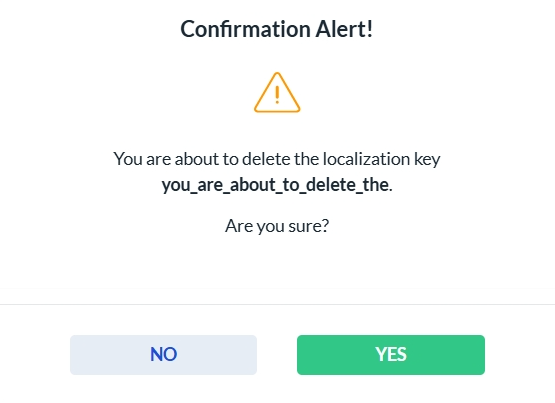
To delete a Localization, click the Delete icon in the Actions column. A confirmation dialog will appear. Click Yes to permanently delete the selected Localization, or No to cancel the action.
Import Localization
To import Localization, click the Import button. This will open the Localization import form. Choose a csv file to import localization. Sample csv can be get when clicked on Export button. Complete all required fields, then click Save to store the new Localization or Cancel to discard your changes.