Vehicles
Overview
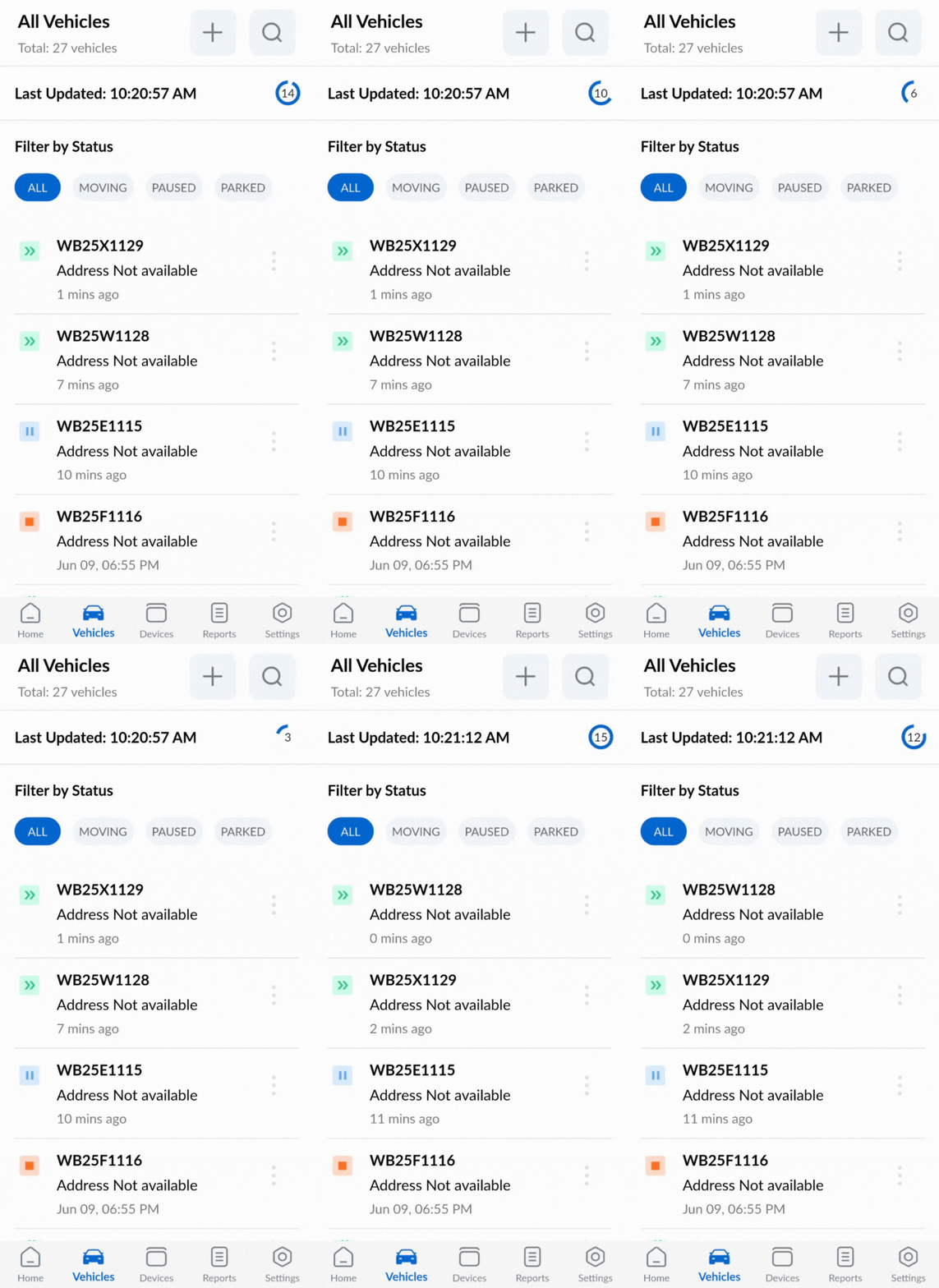
The Vehicle List displays vehicles based on their current activity status, such as moving, idling, parked, or inactive. This categorization helps users quickly understand the real-time status of their fleet.
The list is automatically refreshed every 15 seconds to ensure that the displayed information remains up to date. Each entry typically includes details like the vehicle plate number, address, last updated time, and a status icon that visually represents the vehicle's movement status.
The screen displays the following information:
- Total number of vehicles
- Time of last list update
- Vehicle list where each list item displays:
- Vehicle plate number
- Latest Location address if available
- Last time data was received
- The status icon which indicates whether the vehicle is moving, paused or parked.
Filter Vehicle By Status
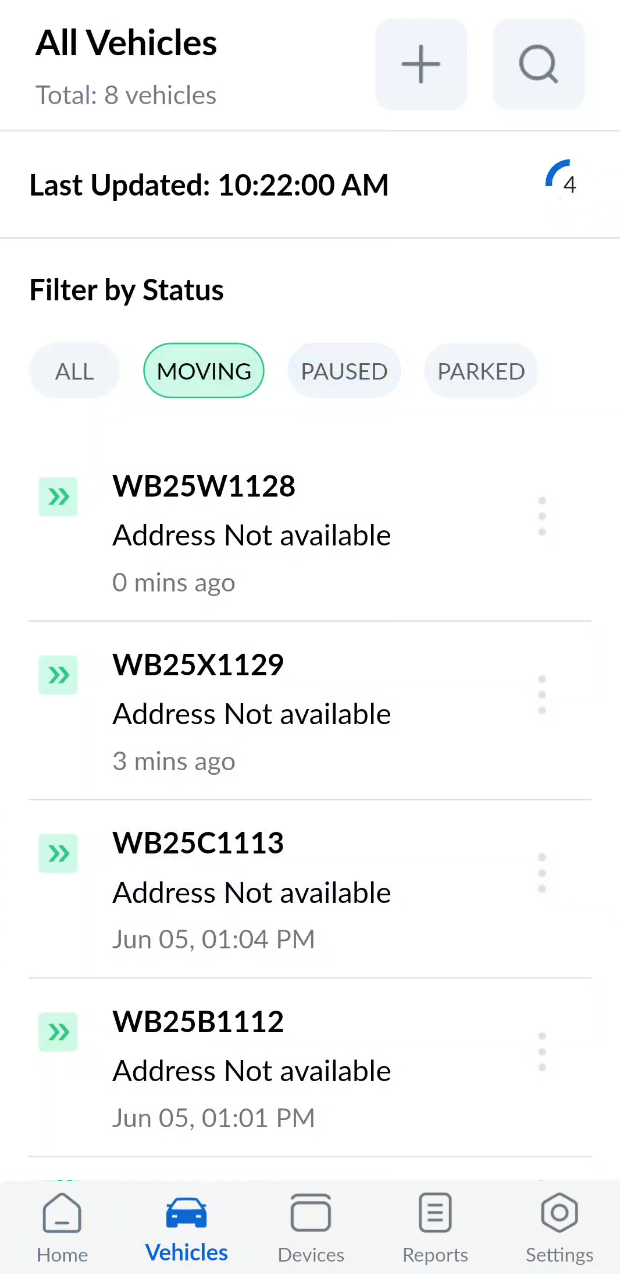
- You can filter vehicles by their status by tapping on the corresponding status buttons.
- Multiple statuses can be selected at the same time (e.g., Moving and Paused). In this case, only vehicles matching the selected statuses will be displayed in the list.
- To deselect a status, simply tap the status button again.
Vehicle Search
You can search a vehicle by its plate number, attached device IMEI and device name.
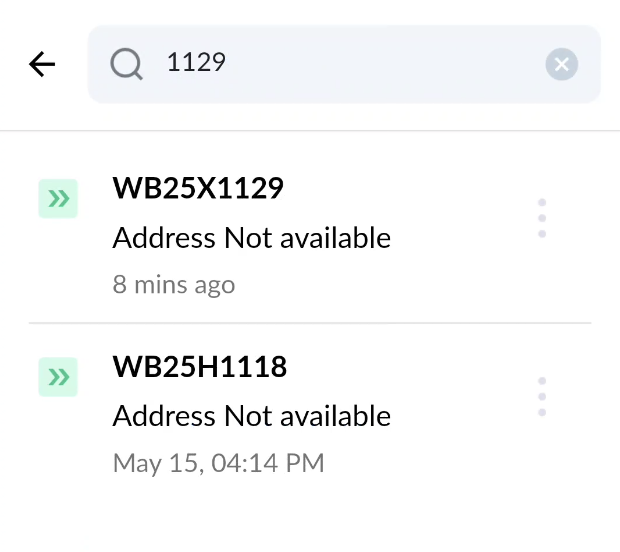
For admin users vehicle list will display all the vehicles available for the customer. Whereas for non admin users it will show only those vehicles that are assigned to the user. Non admin users will only be able to search the vehicles assigned to them.
Vehicle Management
This application allowes user to create, edit or delete vehicles if the user has the respective priviledges.
Creating a New Vehicle
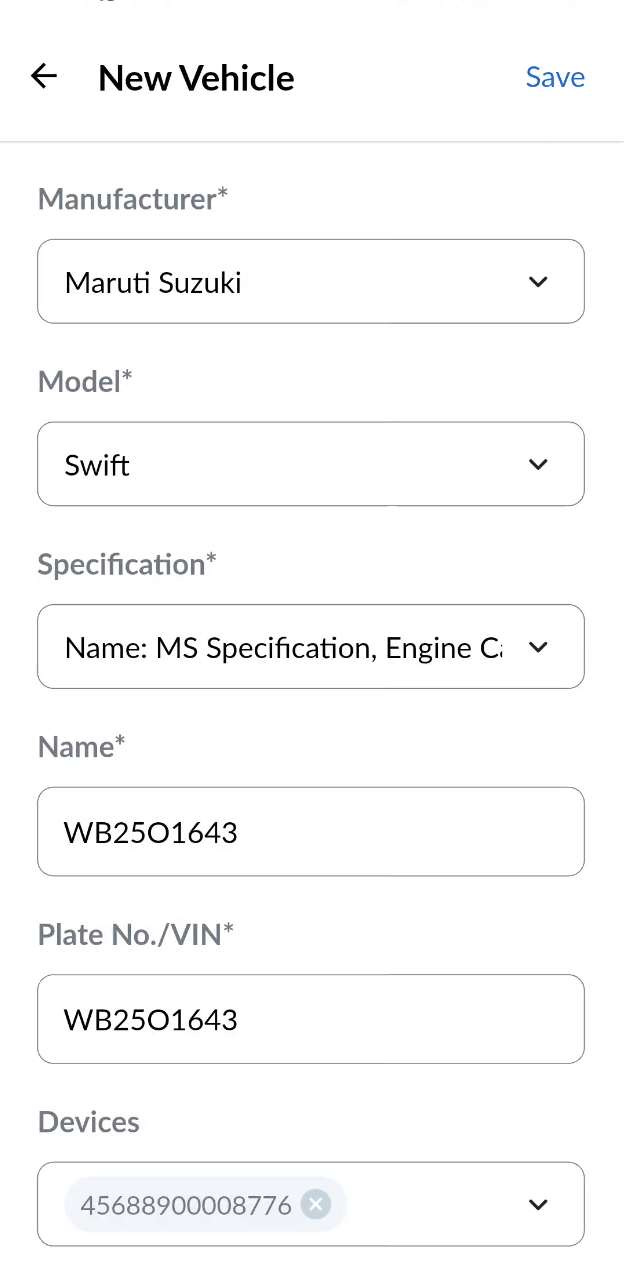
To create a new vehicle, tap the ‘+’ button located at the top of the screen. This opens the "New Vehicle" form.
Steps to Create a New Vehicle (*fields marked with an asterisk are mandatory):- Select the Vehicle Manufacturer*.
- Select the Model*.
- Select the Specification*.
- Enter the Vehicle Name*.
- Enter the Vehicle Plate Number*.
- Select Devices to be attached to the vehicle from the list of available devices.
- Enter the Engine Number.
- Enter the Chassis Number.
- Select Vehicle Groups to which the vehicle should belong.
- Select the User of the vehicle (by default, the current user is selected).
- Select the Vehicle Driver.
- Tap on "Save" button.
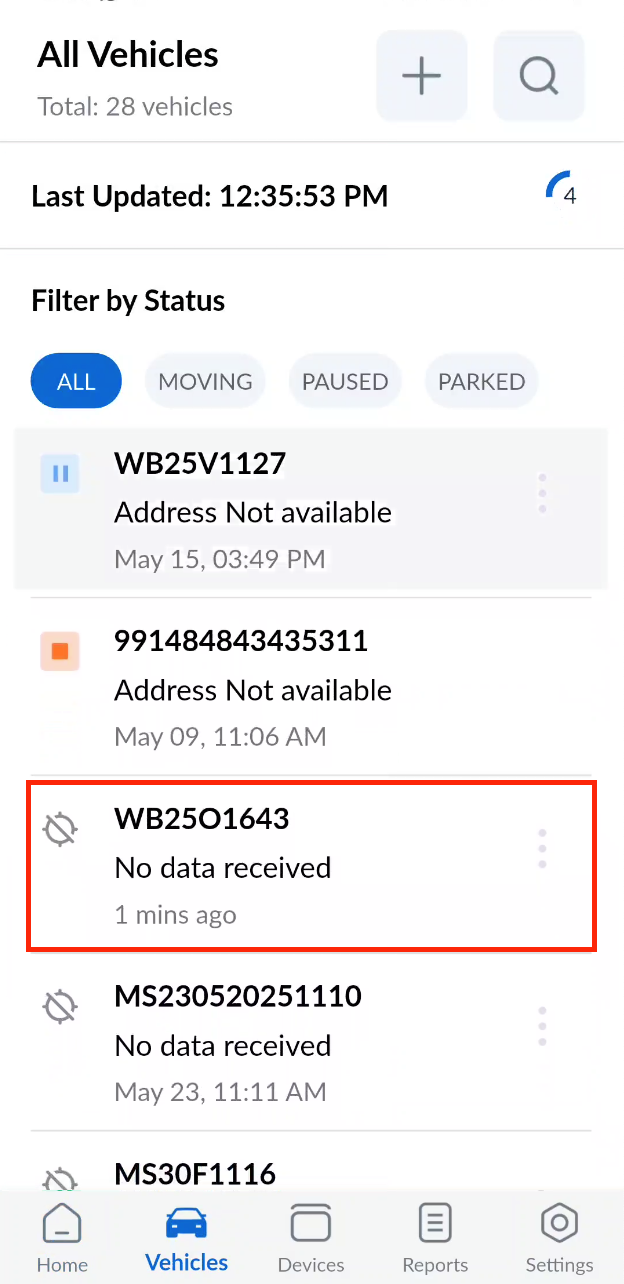
The new vehicle will be created and sorted after all the vehicles having device data. A vehicle which is created but does not have any device data will be denoted by  icon.
icon.
Editing Vehicle
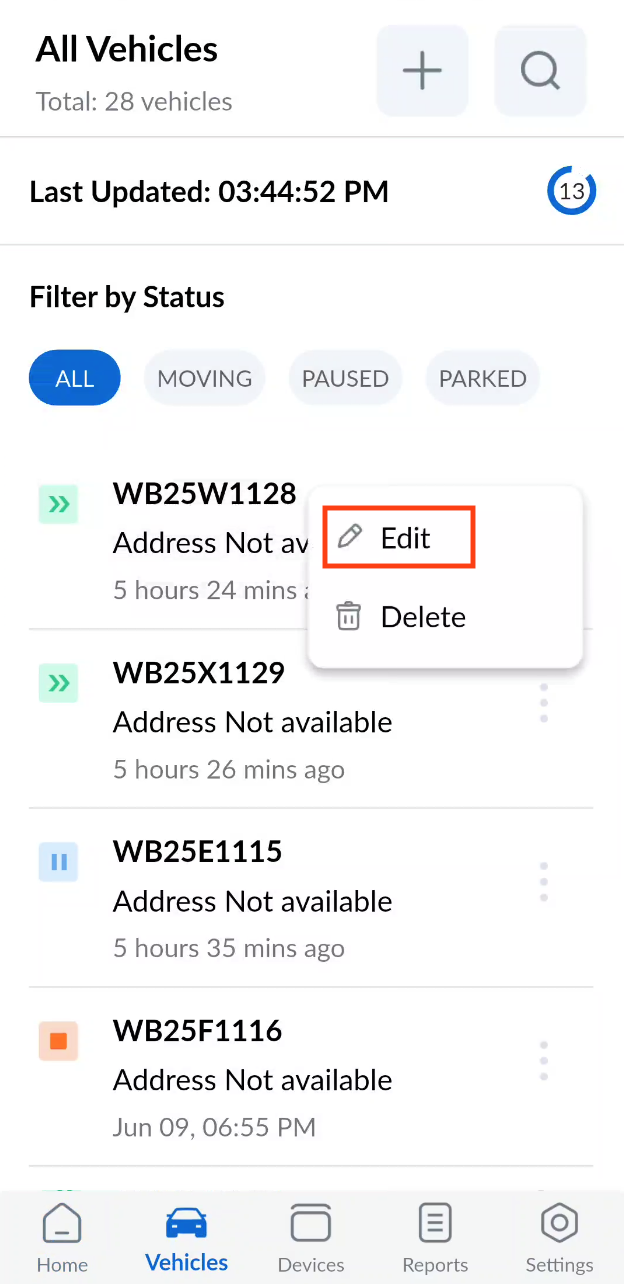
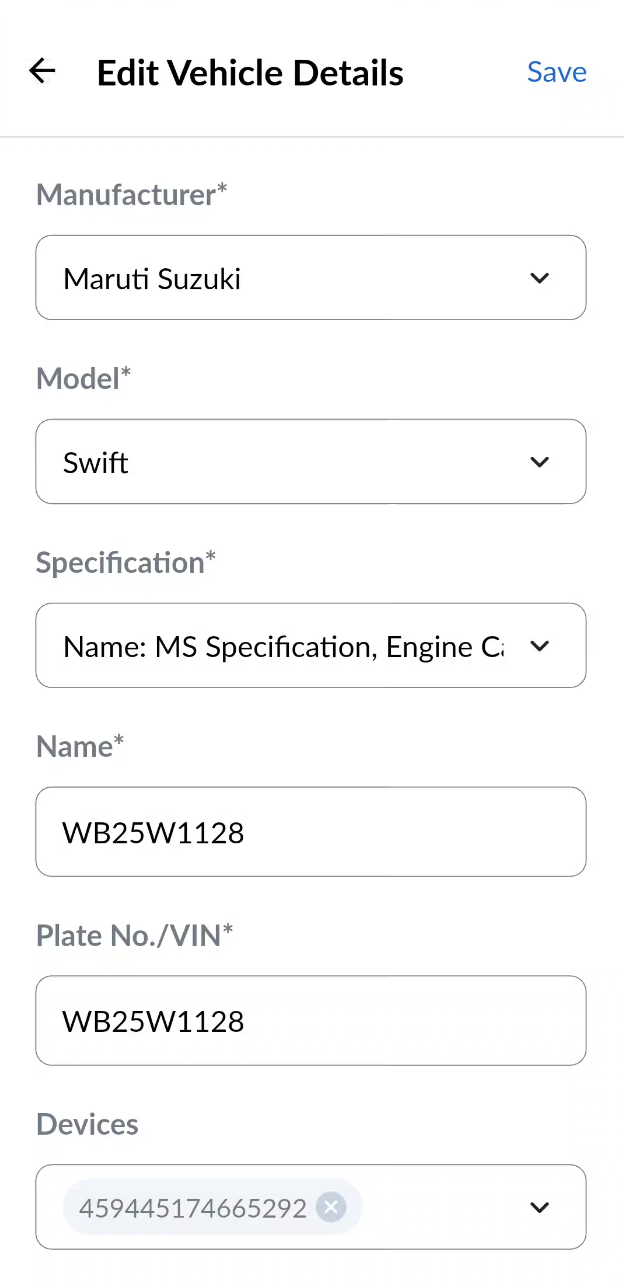
You can edit the vehicle by tapping on the tripple dots icon  at the right side of each and every vehicle and choosing edit from the dropdown. An Edit Vehicle Details form will appear similar to the new vehicle form. Update the required information and tap on "Save" button.
Deleting a Vehicle
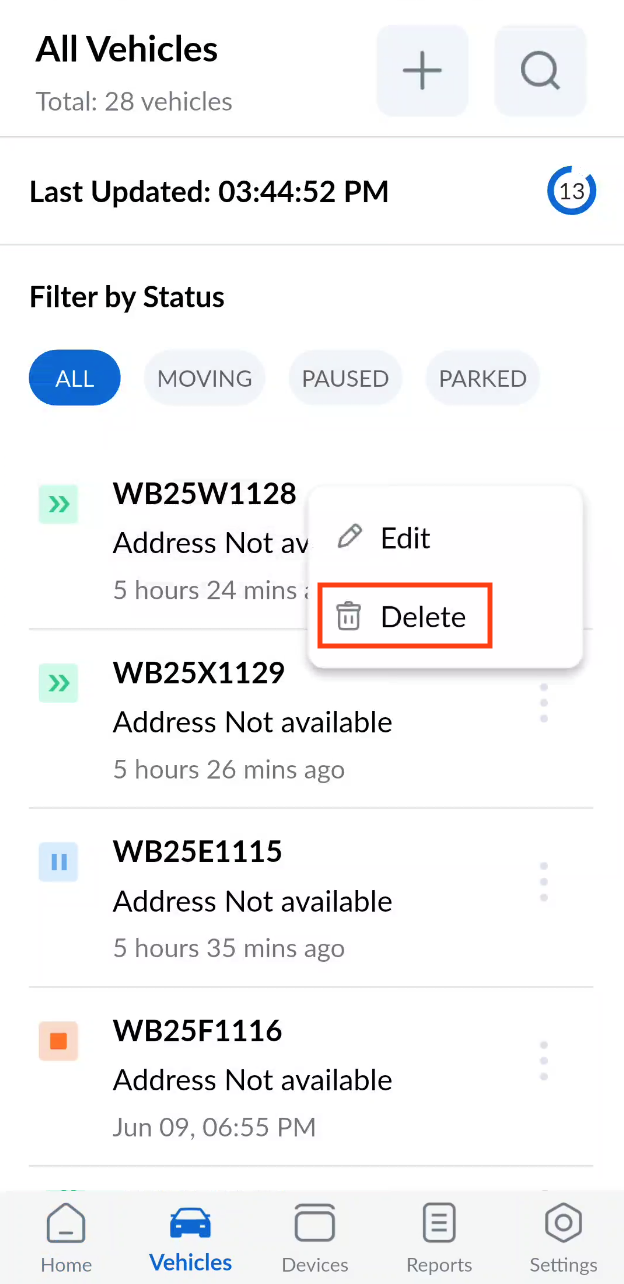
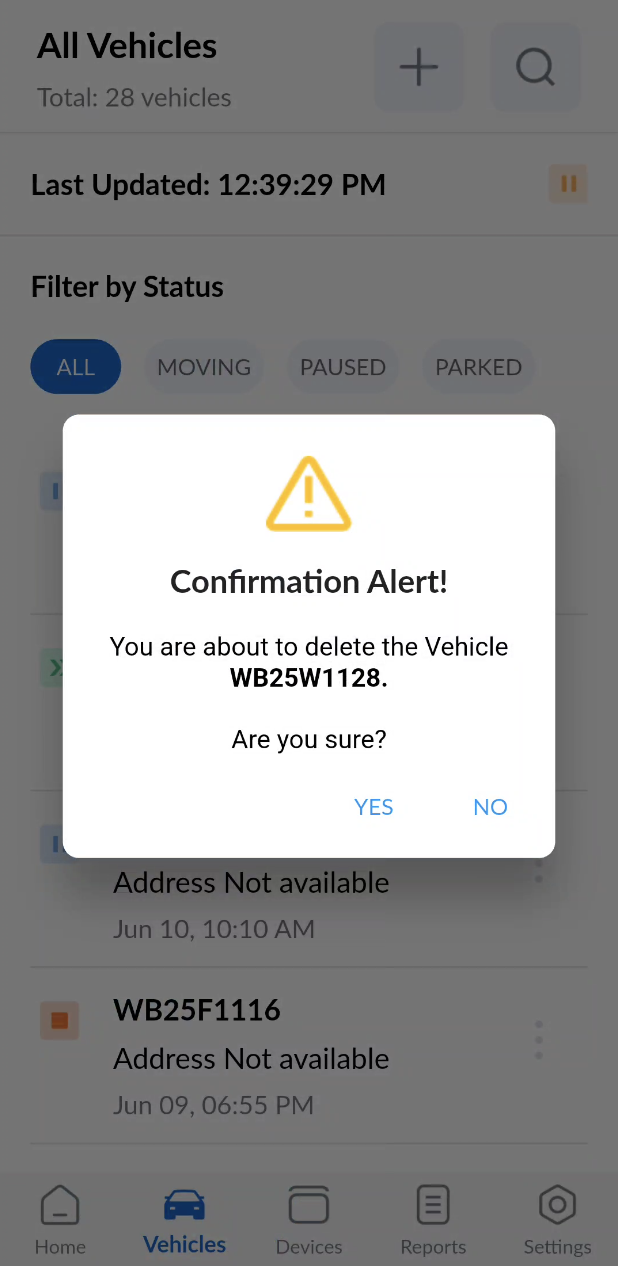
For deleting a vehicle tap on the tripple dot icon icon. and choose delete from the dropdown. A confirmation dialog will appear - tap yes if you want to delete, tap no otherwise.
If you have the vehicle management priviledge but yet not able to access the functionalities then may be these features are not available for your client. Please contact the system administration to request access.