Devices
Vehicles are linked to tracking devices that transmit GPS and vehicle-related data to the server for location tracking purposes. These devices can either be physical OBD units that need to be plugged into the vehicle or GPS-enabled mobile devices. The Device List displays all such devices that have been registered on the portal.
Overview
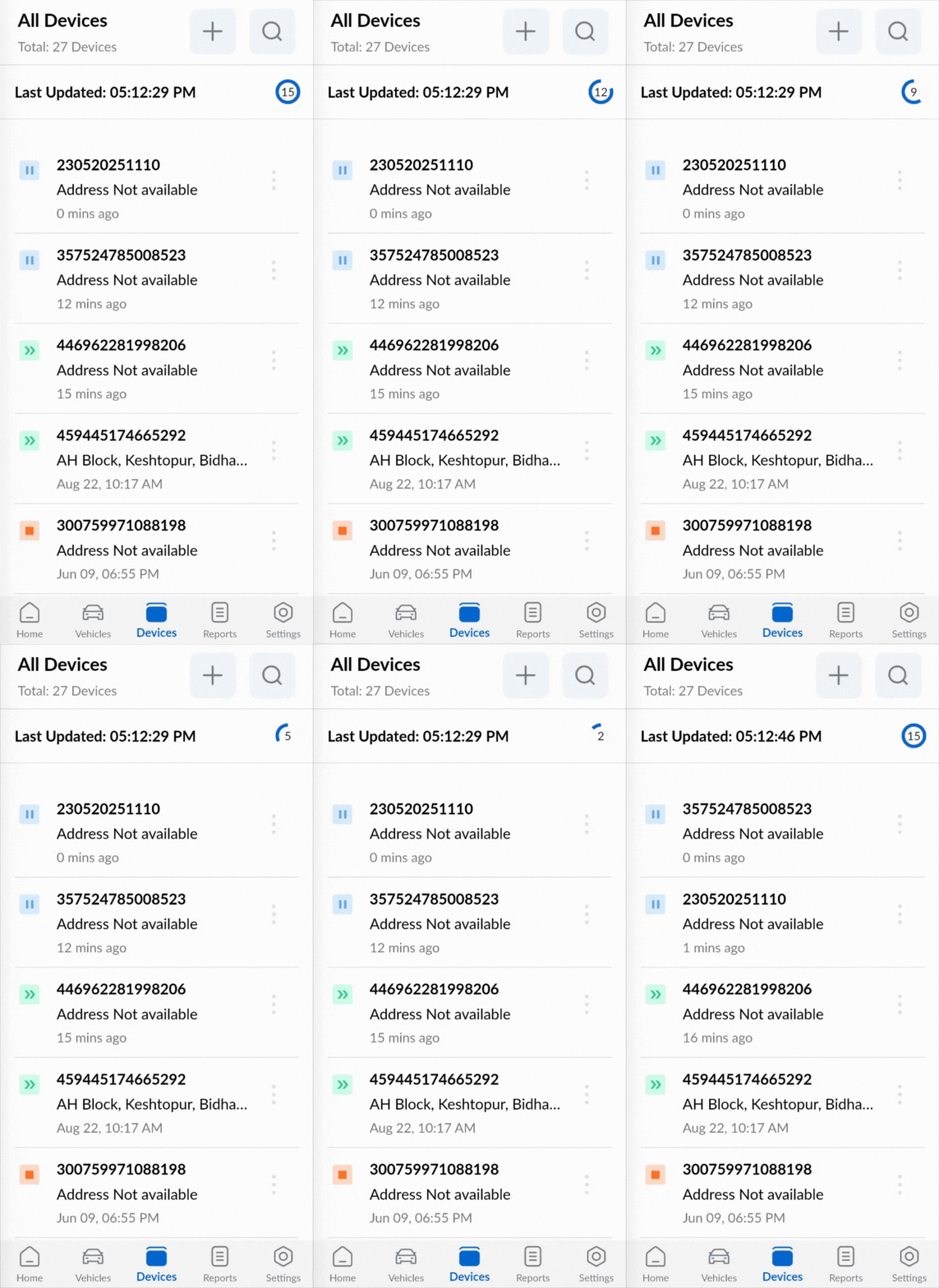
The device list is automatically refreshed every 15 seconds to ensure that the displayed information remains up to date. Each entry typically includes details like the Device IMEI/ID, address, last updated time, and a status icon that visually represents the device's movement status.
The screen displays the following information:
- Total number of devices
- Time of last list update
- Device list where each list item displays:
- Name of the devices or Device ID/IMEI based on availability
- Last location address (if available)
- Last time of data received
- The status icon which indicates whether the vehicle associated with the device is moving, paused or parked.
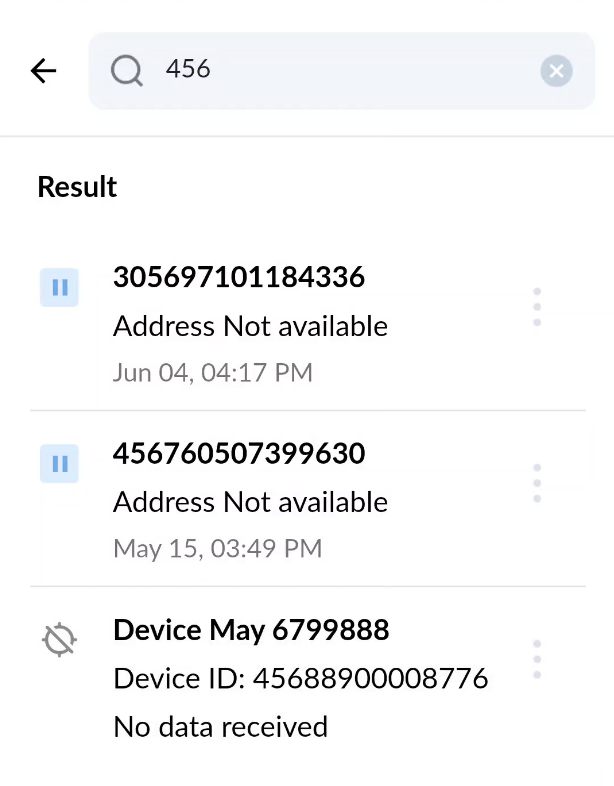
Device Search
Devices can be searched using Name, Device ID/IMEI and Vehicle Plate number.
Device Management
You can create, edit delete devices from the device list if you have the respective user rights.
Creating a New Device
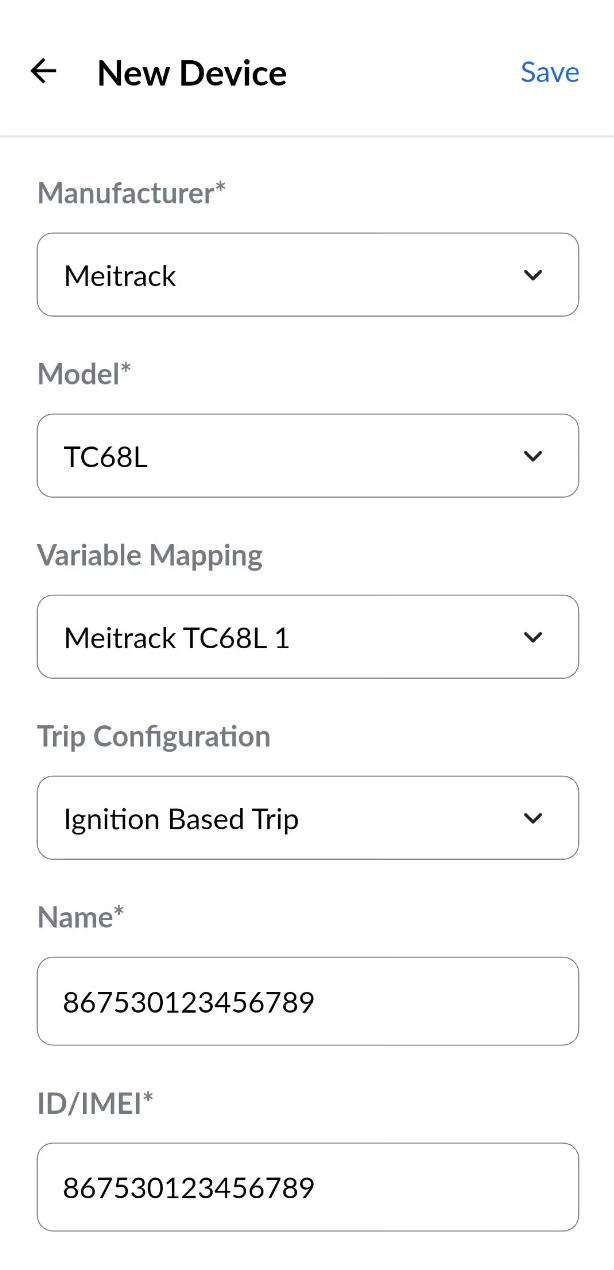
Tap the ‘+’ button at the top of the screen to create a new device. This action opens the "New Device" form.
Steps to Create a New Device (*fields marked with an asterisk are mandatory):- Select the Device Manufacturer* - Choose from commonly used tracking device manufacturers such as Meitrack, Ulbotech, and others.
- Select the Model* - Choose the appropriate model provided by the selected manufacturer.
- Select the Variable Mapping - Map the data fields sent by the device to custom variables for proper display in the app.
- Select the Trip Configuration - Define the configuration used for trip generation.
- Enter the Device Name* - Provide a unique name for the device.
- Enter the Device ID/IMEI* - Input the device’s unique ID or IMEI number.
- Select the Primary SIM Card - Choose the primary SIM; the associated phone number will be auto-filled.
- Toggle the Enabled switch - Enable or disable the device. A disabled device will not receive any new data.
- Enter the SMS Username and Password - These credentials are used to send SMS messages to the device.
- Select the Device Groups - Assign the device to one or more groups.
- Select the Backends - Choose the destination(s) where device data should be forwarded.
- Enter the Backend Credentials - Required for authenticating and forwarding data to external servers.
- Select the Geolocation Plan - Choose the appropriate plan for geolocation services.
- Enter the Firmware Version - Specify the firmware version installed on the device.
- Tap the Save button
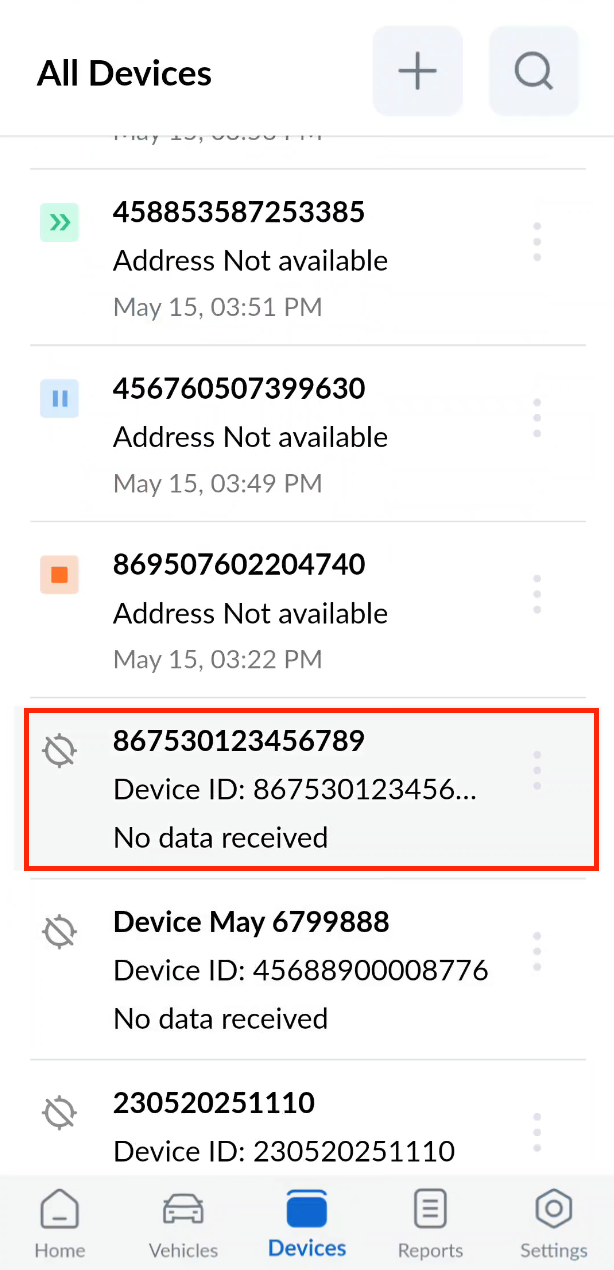
The new device will be created and listed after all devices that contain data. Any newly created device without associated data will be indicated by  icon.
icon.
Editing Device
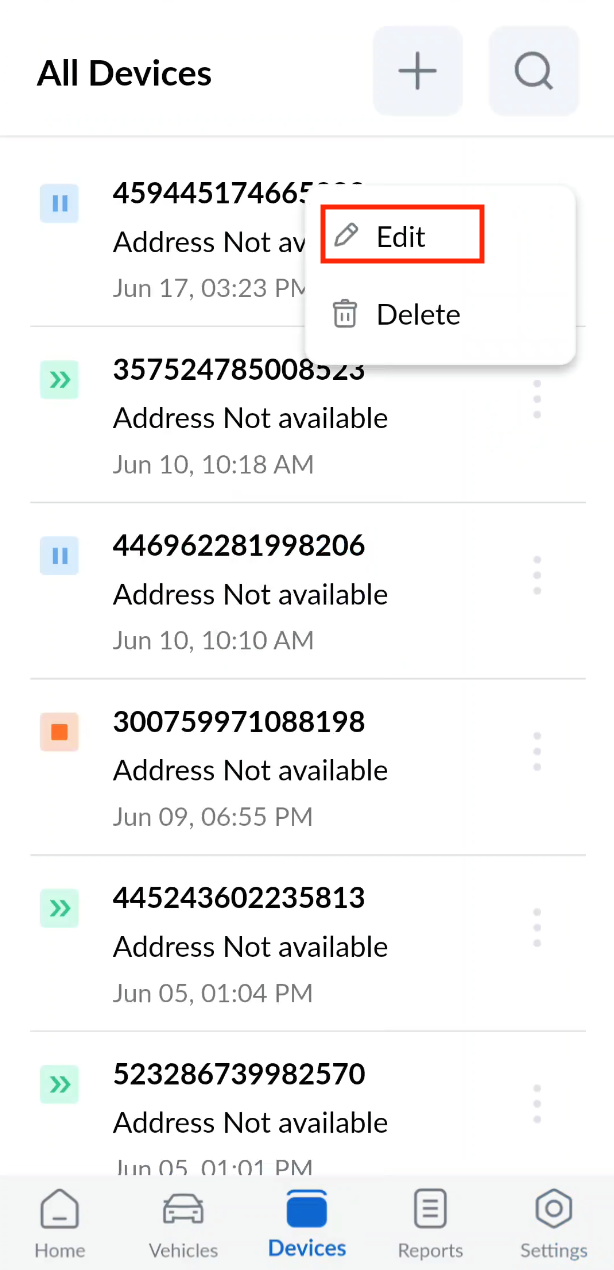
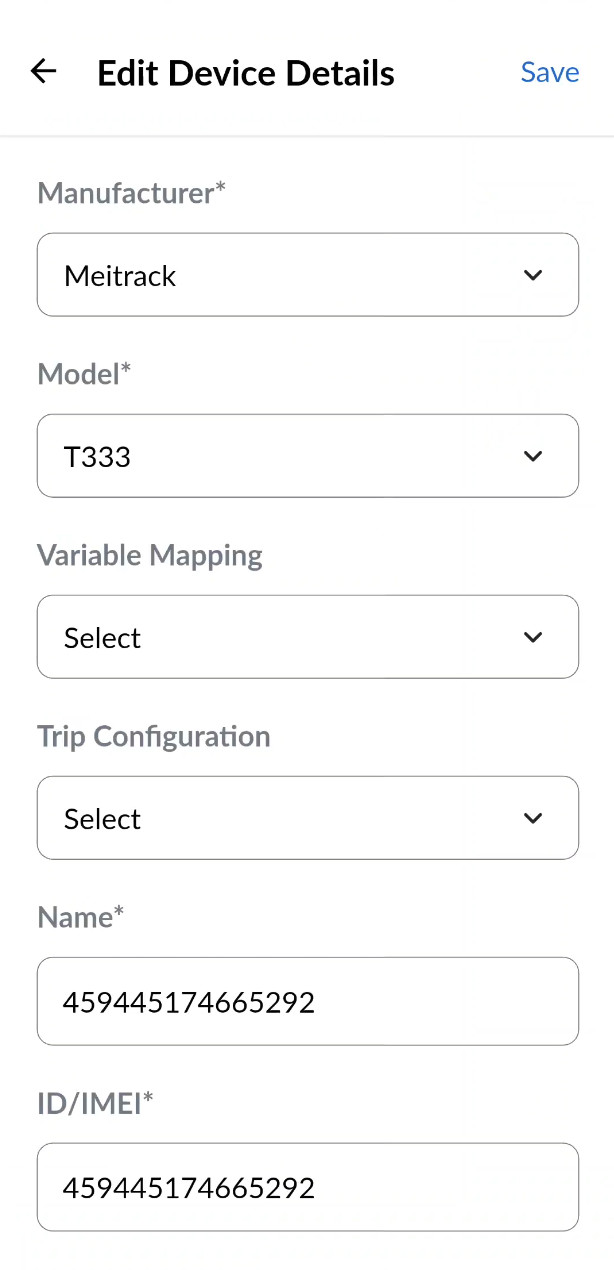
To edit a device, tap the triple dot icon located to the right of each device, and select Edit from the dropdown menu. An Edit Device Details form will appear, similar to the New Device form. Update the necessary information and tap the Save button to apply the changes.
Deleting a Device
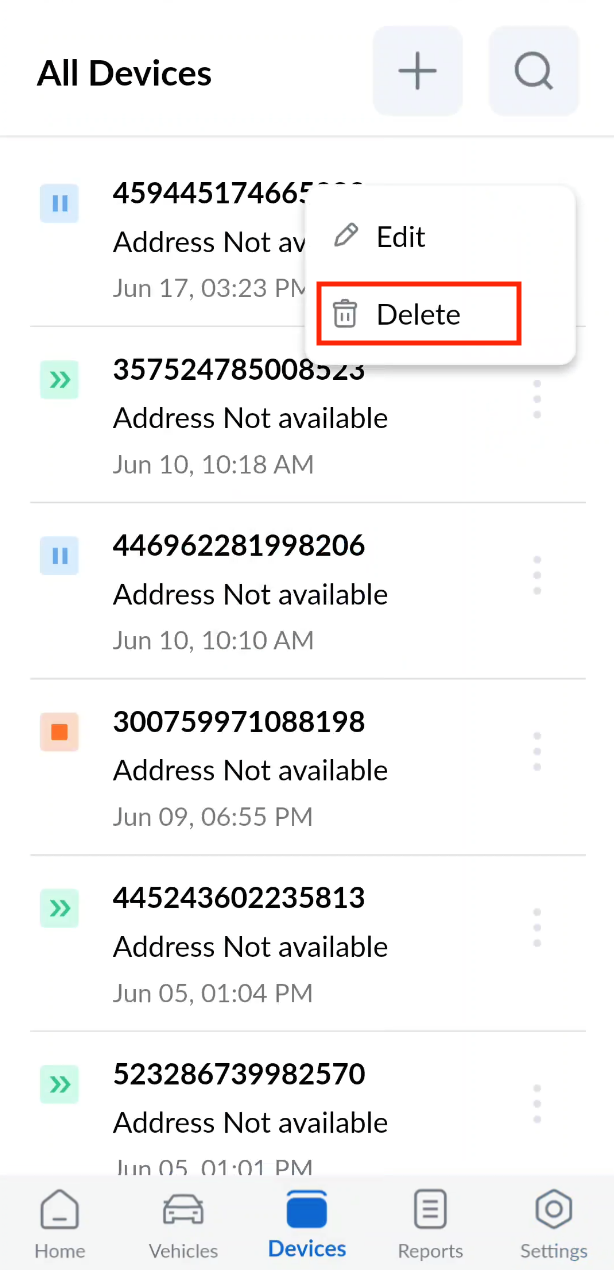
To delete a device, tap the triple dot icon
and select Delete from the dropdown menu. A
confirmation dialog will appear — tap Yes to confirm the deletion, or No to cancel.

If you have device management privileges but are still unable to access these functionalities, it is possible that these features are not enabled for your client. Please contact your system administrator to request access.