Reports
Reports allow users to generated and view detailed or summarised information about the activities of their vehicles or devices, such as track points, trips, events, and other activity logs.
Report Types and Sub-Types
The following table describes the various types of reports supported by the application and their sub-types.
| Report Type | Sub-Types | Description |
|---|---|---|
| Trackpoint | Detailed, Summary | Trackpoint Reports provide tracking data captured over time from a vehicle or device, including details such as location points, speed, mileage, and more. Since this data is highly granular, users can choose to include only the relevant information in the report by selecting a Trackpoint Report Configuration. This configuration must be created in advance using the Web Management Portal. |
| Trip | Detailed, Summary | Shows information about trips, like start/end time, distance, etc. |
| Event | Detailed, Summary | Lists event-based data such as idling, speeding, geofence entry/exit, low battery, ignition status change. |
| Raw | Detailed | Displays raw, unprocessed tracking data exactly as received from the tracking device. These reports are mainly used for troubleshooting issues with how information is stored or interpreted by the system. |
| Activity | Detailed, Summary | Combines trip and parked activity for a complete picture of daily usage. |
| Trip Idle Parked | Detailed, Summary | Lists down a vehicle’s usage into trip, idle, and parked durations. |
| Offline | Detailed | Lists the offline devices after a threshold date and time. |
There are two Report Sub-Types:
- Detailed – Contains complete records for each data point.
- Summary – Aggregated data based on a summary interval (e.g., Daily, Weekly, Monthly, or NA).
Report List
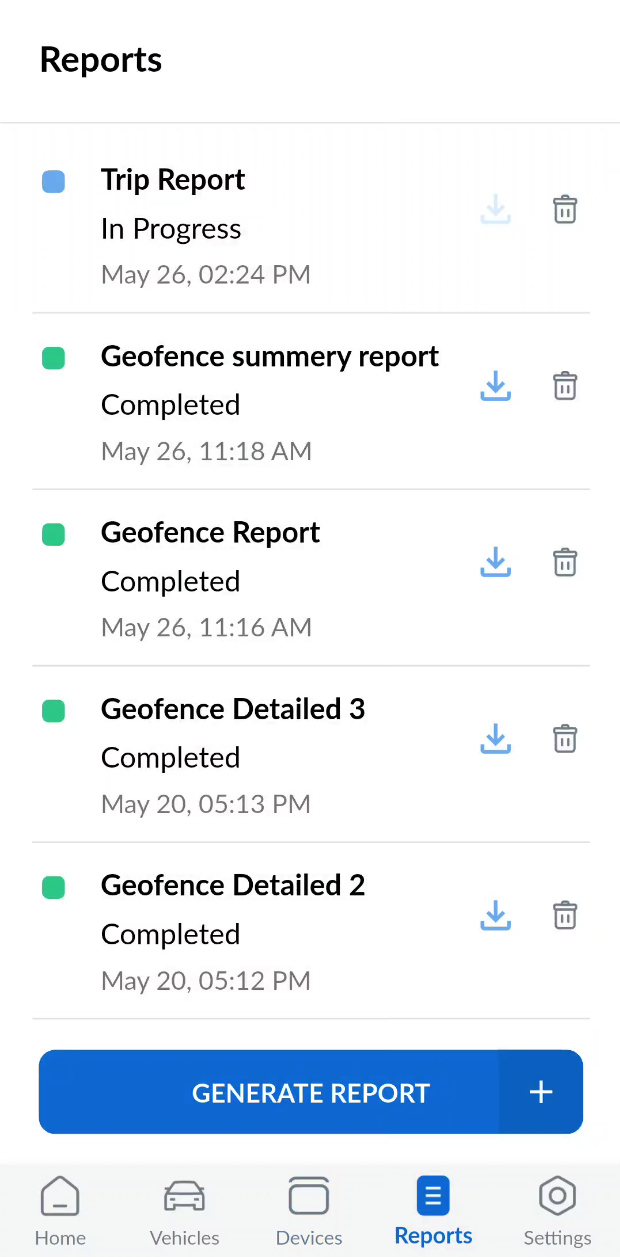
Report list displays the following information:
- Report name - The name assigned by the user during report generation.
- Generation status - Indicates the current status of the report file generation after the form is submitted via the mobile app. Once submitted, the entered data is uploaded to the server where the report file is created based on the requested information. Status types include:
- Complete
- In Progress
- Pending
- Failure
- Creation date and time - The timestamp of when the report generation was initiated by the user.
Once a report is successfully generated on the server, you can download it by tapping the Download button.
You can also delete a report at any time by tapping the Delete button.
Report Details
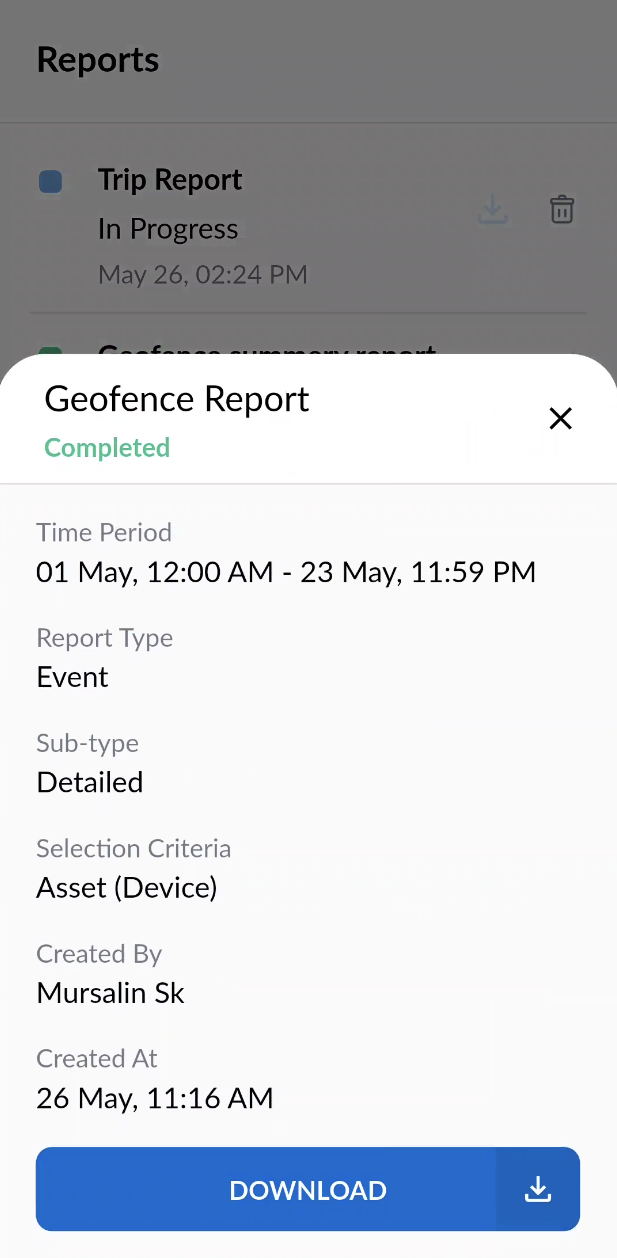
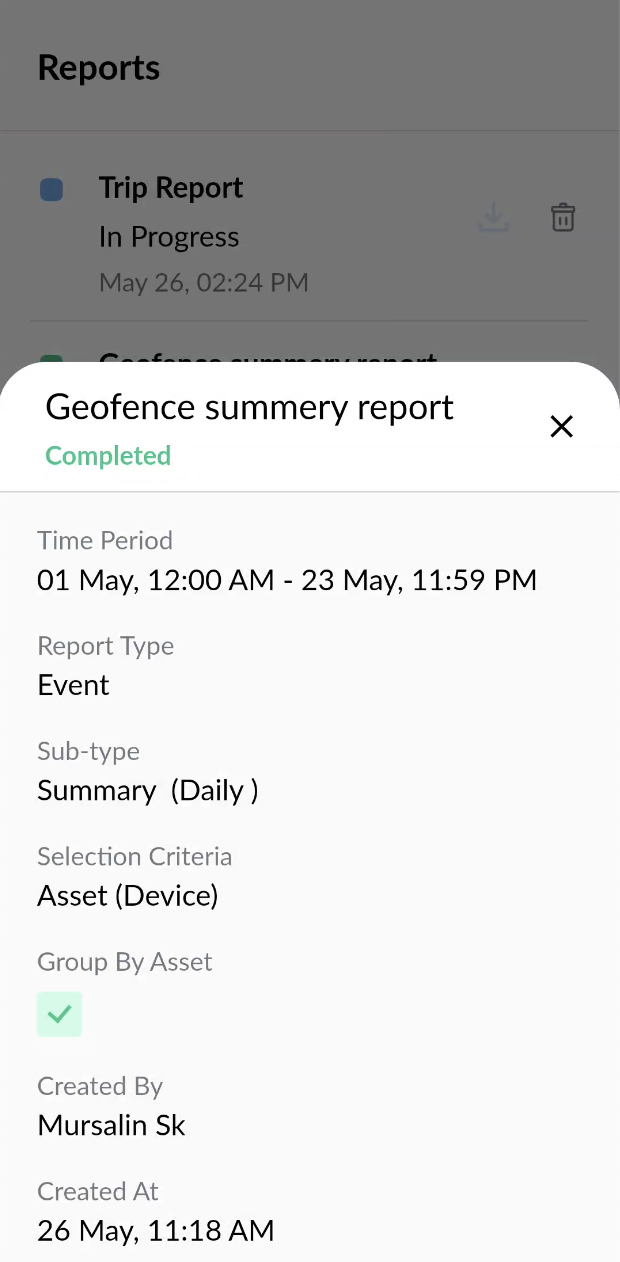
On tapping a report the following metadata is displayed:
- Time Period: The date and time range covered by the report.
- Report Type: Indicates the type of data included in the report.
- Report Sub-Type: Specifies whether the report is Detailed or Summary (with the summary interval).
- Selection Criteria: The asset(s) for which the report was generated, which can be vehicle, device, vehicle group or device group.
- Group by Asset (only for summary reports): Indicates whether the summary data should be grouped by vehicle or device.
- Created By: The user who generated the report.
- Creation Time: The timestamp when the report was created.
Report Generation
Once the user taps the Generate Report button, a New Report form is opened. This form allows the user to configure and create reports by providing the necessary information.
In this guide, we have demonstrated two scenarios for creating reports:
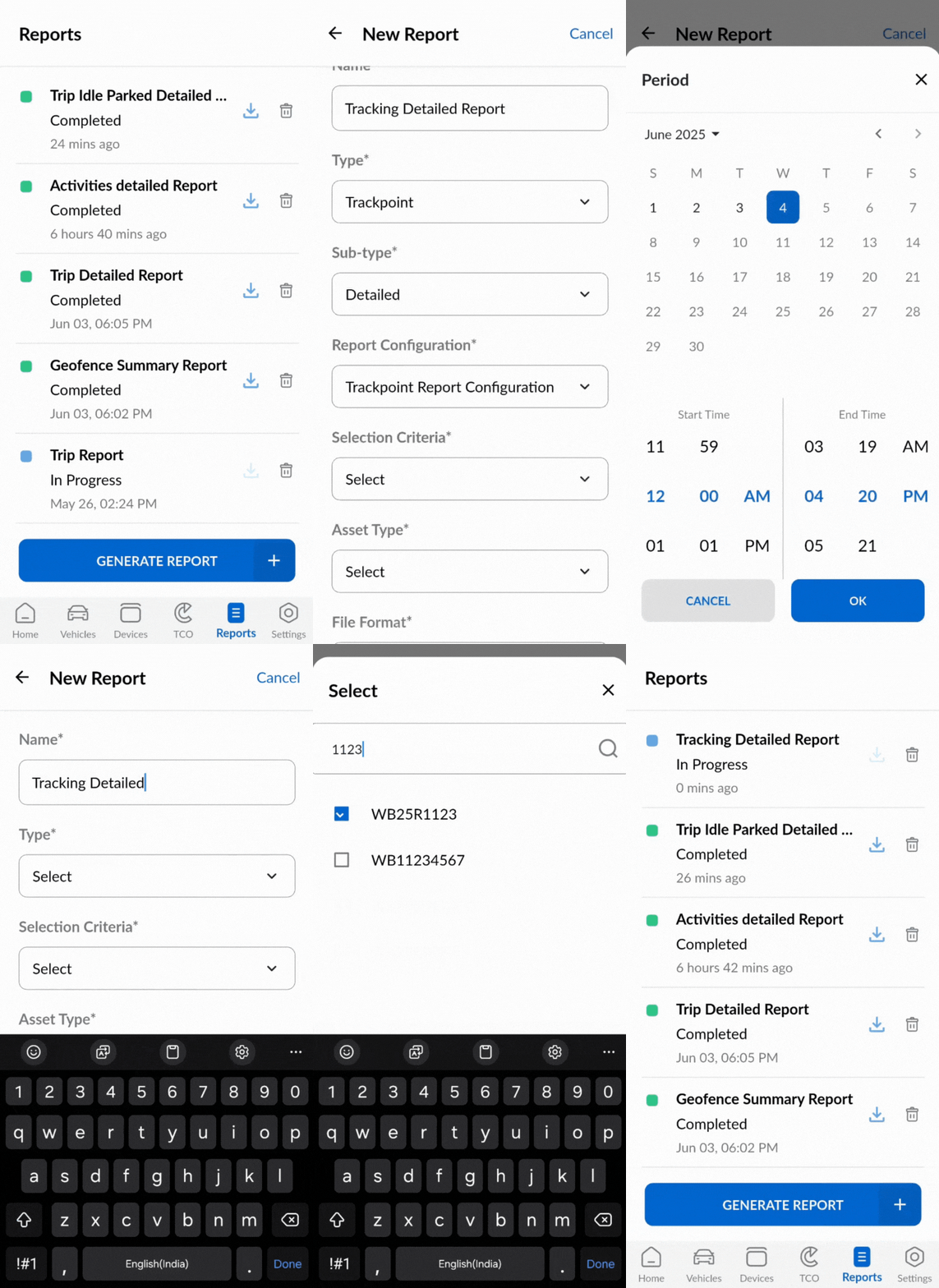
- Trackpoint Detailed Report
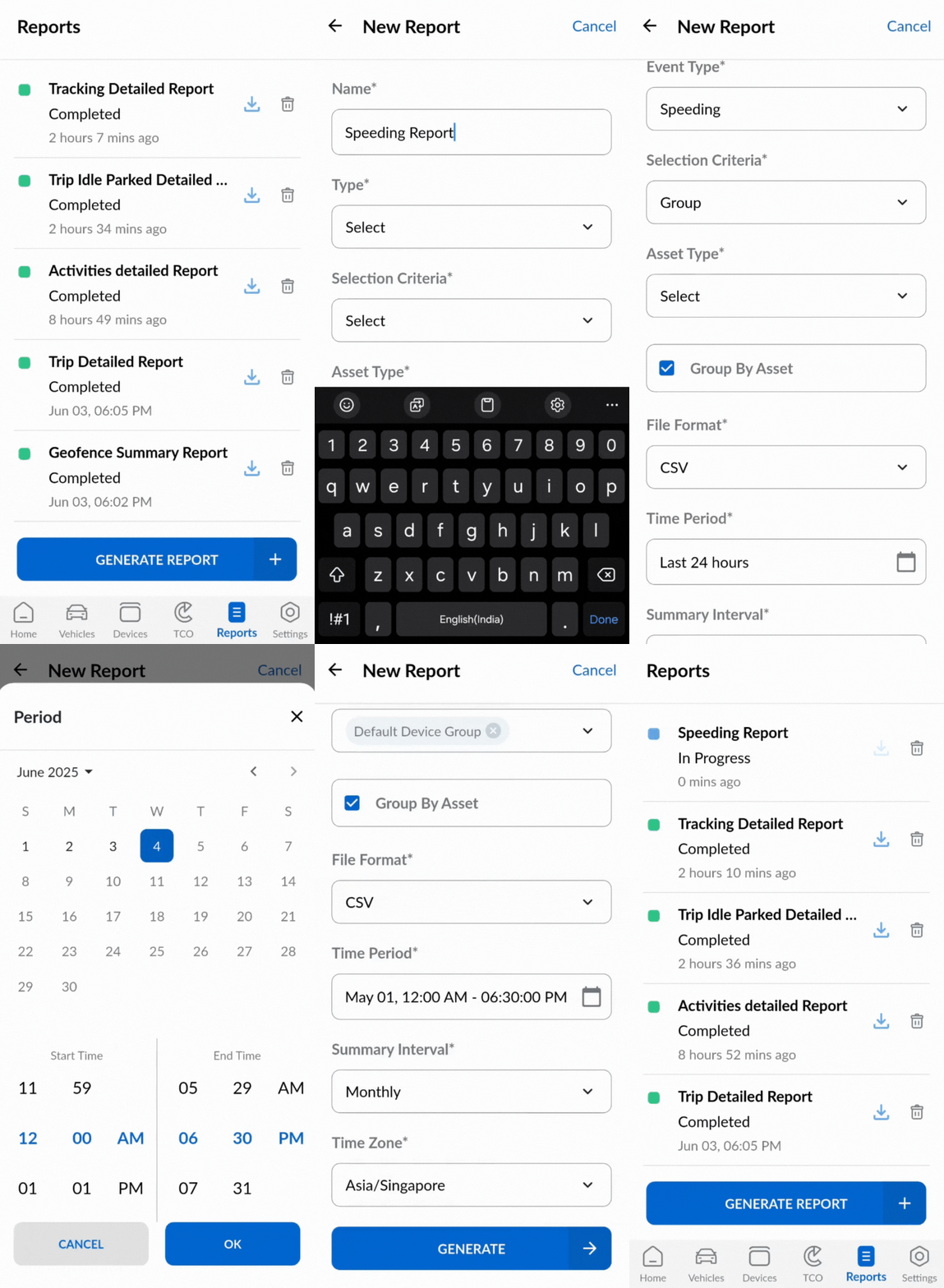
- Event Summary Report
Each scenario highlights how different report types and configurations can be used based on the user's needs.
Create a Trackpoint Detailed Report
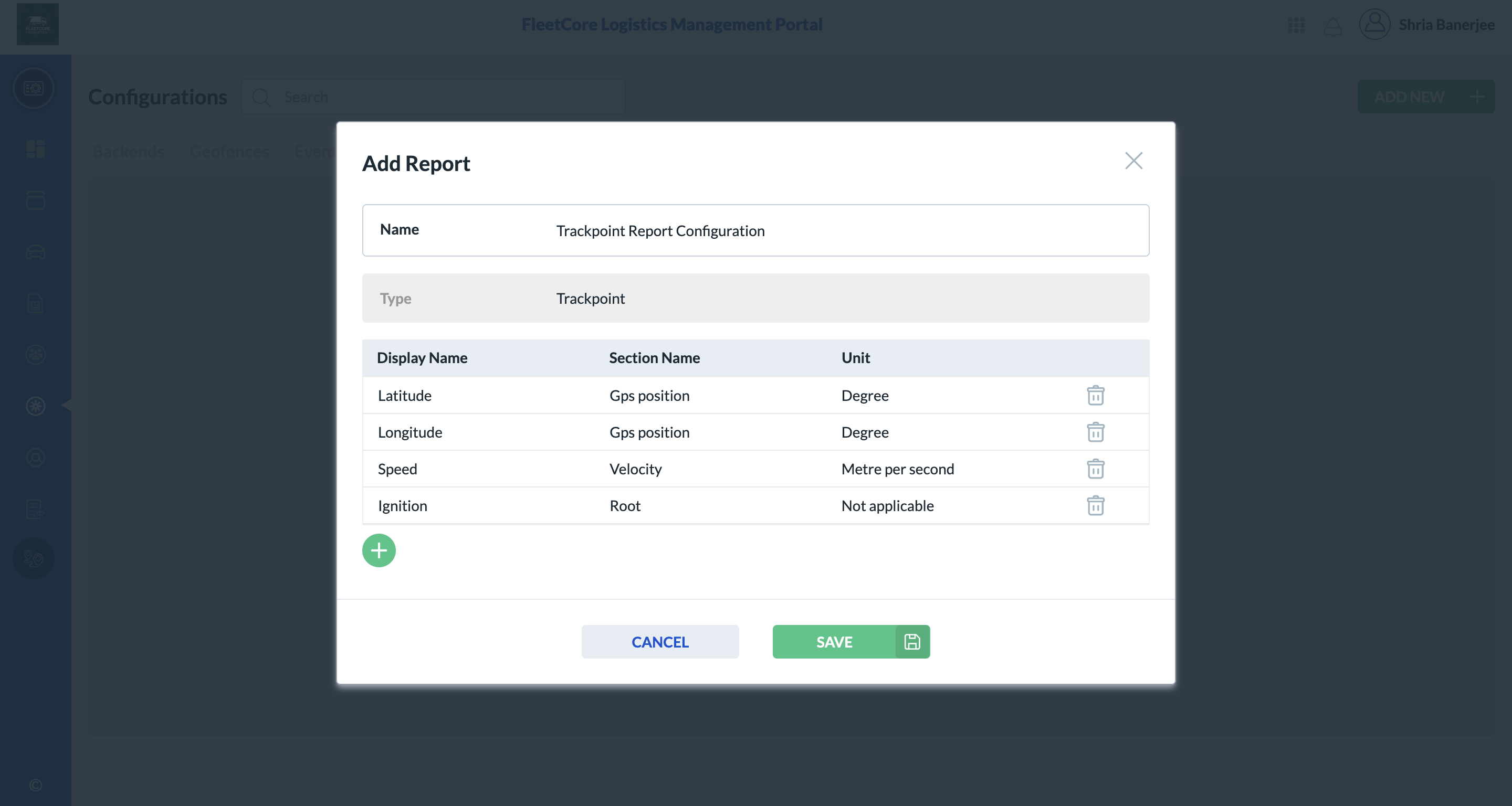
Prerequisite: At least one Trackpoint Report Configuration must be created in the Web Management Portal. This configuration allows user to specify the tracking data variables required in order to generate a Trackpoint Report.
- Enter a name for the report.
- Select Trackpoint as the Report Type.
- Choose Detailed as the Sub-Type.
- Select a Report Configuration (must be pre-created in the Web Management Portal).
- Set the Selection Criteria to Asset and choose Vehicle as the Asset Type.
- Choose one or more Vehicles for which the report should be generated.
- The File Format is set to CSV by default.
- Pick the Time Period for the report using the calendar selector.
- Select the Applicable Days between All Days, Weekdays and Weekends.
- Select the appropriate Time Zone.
- Tap on Generate button.
Create an Event Summary Report
- Enter a name for the report.
- Select Event as the Report Type.
- Choose Summary as the Sub-Type.
- Select an Event Type (e.g., Speeding).
- Set Selection Criteria to Group and choose Device as the Asset Type.
- Choose one or more Device Groups for which the report should be generated.
- Configure Group by Asset:
- If enabled, the summary data for each selected asset or group will be displayed separately, grouped by the asset or group.
- If disabled, the report will display consolidated data across all selected assets or groups.
- The File Format is set to CSV by default.
- Select the Time Period using the calendar selector.
- Select the Applicable Days between All Days, Weekdays and Weekends.
- Choose a Summary Interval: Daily, Weekly, Monthly, or NA, based on how you want the report to be summarized.
- Select the appropriate Time Zone.
- Tap the Generate button to create the report.
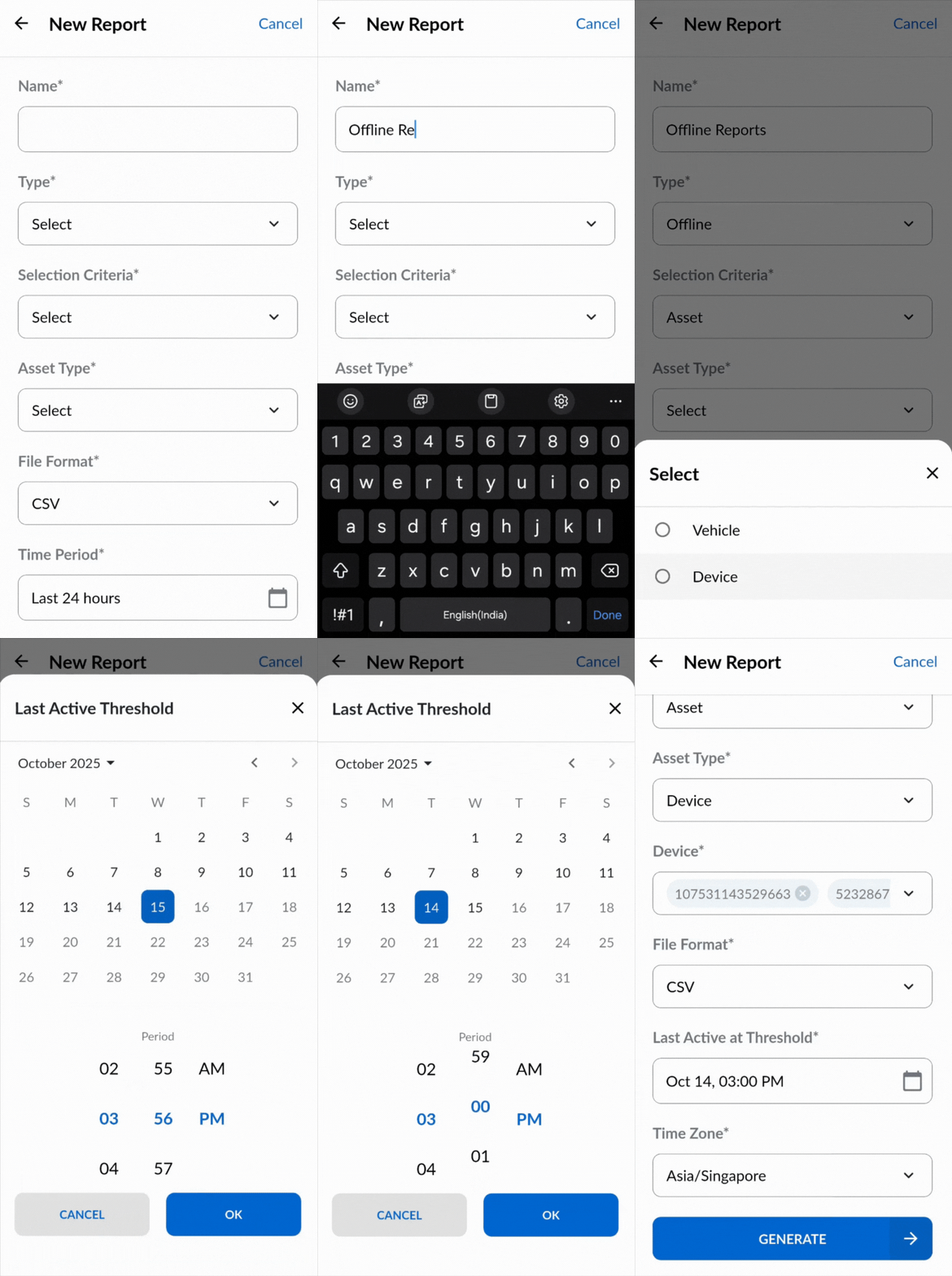
Create an Offline Report
- Enter a name for the report.
- Select Offline as the Report Type.
- Set Selection Criteria to Asset and choose Device as the Asset Type.
- Choose one or more Devices for which the report should be generated.
- The File Format is set to CSV by default.
- Select the Last Active at Treshold date and time using the calendar selector.
- Select the appropriate Time Zone.
- Tap the Generate button to create the report.
- Admin users can view, generate, and delete all reports by default.
- Non-admin users can:
- Only view reports they have generated themselves.
- Perform report handling (generate and delete) only if explicitly granted the required permissions via User Roles in the Web Management Portal.
- Are restricted to creating reports for individual vehicles only—they cannot create reports for devices, vehicle groups, or device groups.