Dashboard
Overview
The live Dashboard provides a real-time location tracking of vehicles and devices on an interactive map. You can monitor the current locations of each asset (if the asset has generated some data), which are updated live to reflect movement and status. Near by assets can be clustered based on the zoom level of the map.
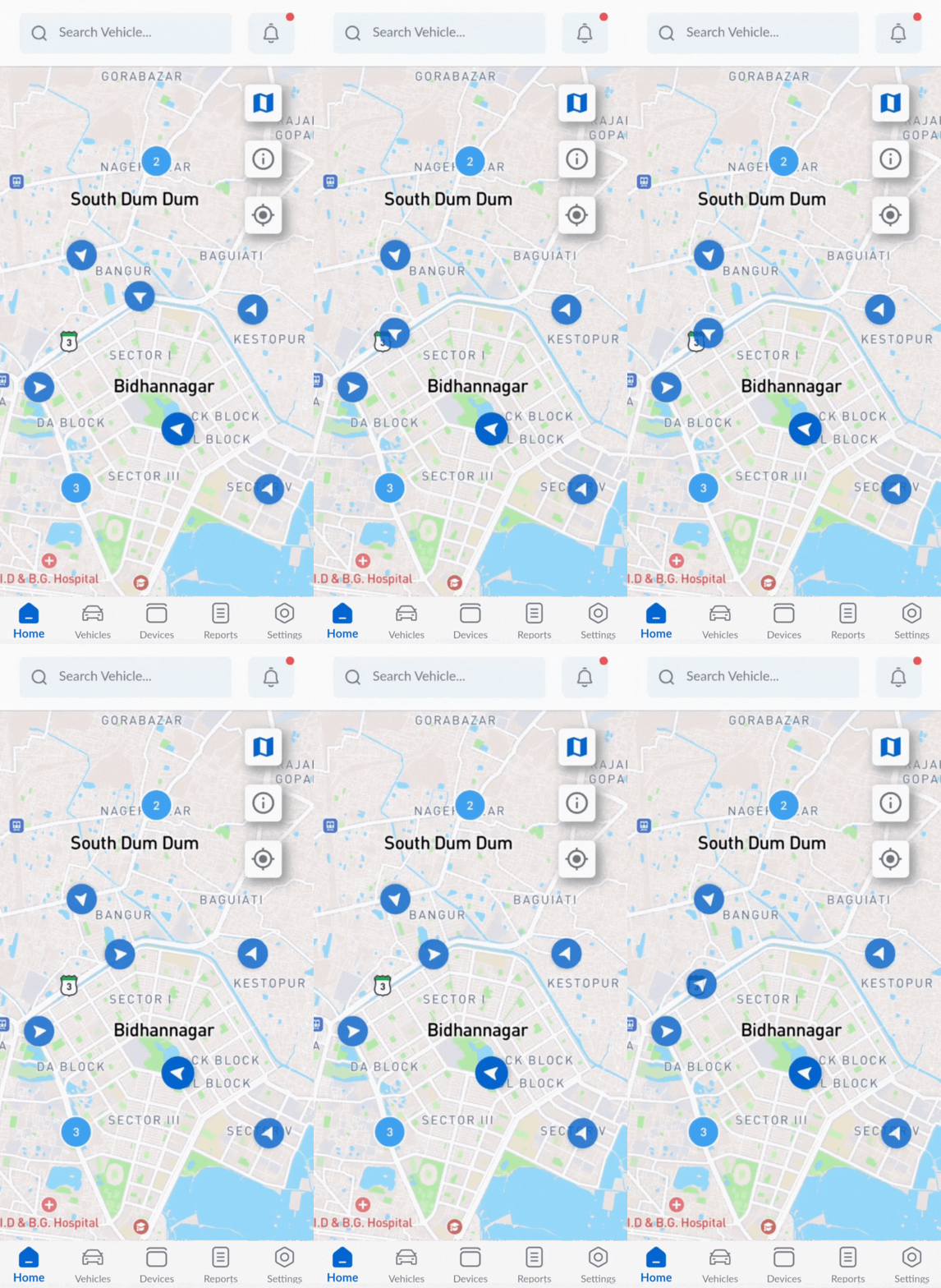
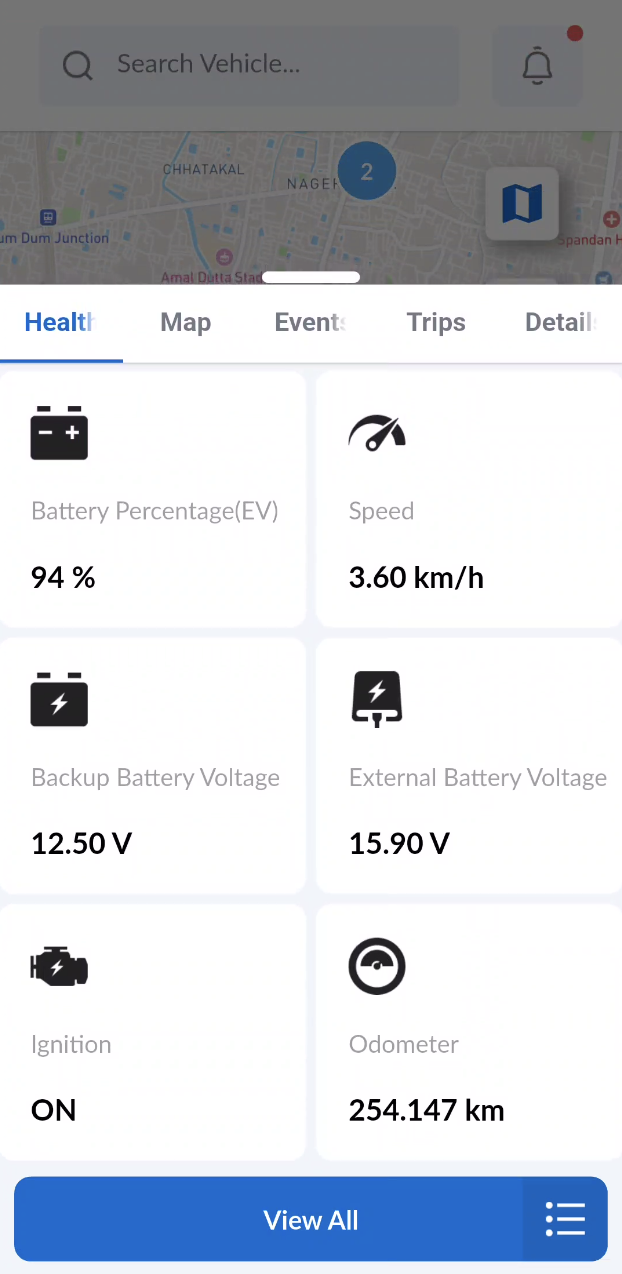
You can click on a marker to reveal detailed information in a bottom popup which displays key information such as:
- Health
- Current location on map and address if available
- Events generated
- Completed and ongoing trips
- Meta data about that vehicle/device.
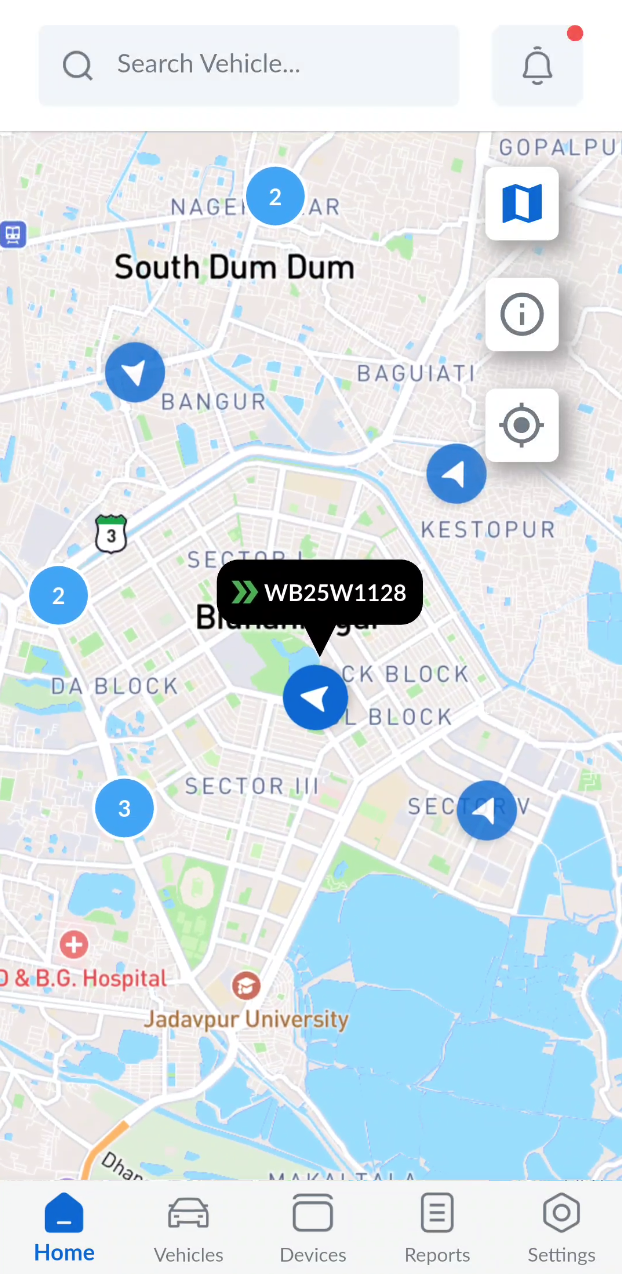
On dismissing the detailed view you can see a popup on the marker showing:
- Vehicle plate number or device ID based on availability
- Status indicators
-
Moving

-
Paused

-
Parked

-
Map options
Additional functionalities are available alongside vehicle tracking on the map, such as changing the map view and locating the user's current position. These actions can be performed using the buttons located at the top-right corner of the map.
- Map View Types (highlighted in red): The Map view type can be changed by tapping on the map button and selecting a suitable map view from the available options:
- Day (default)
- Night
- Satellite Streets
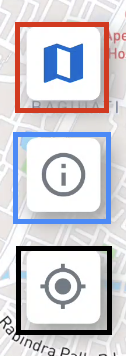
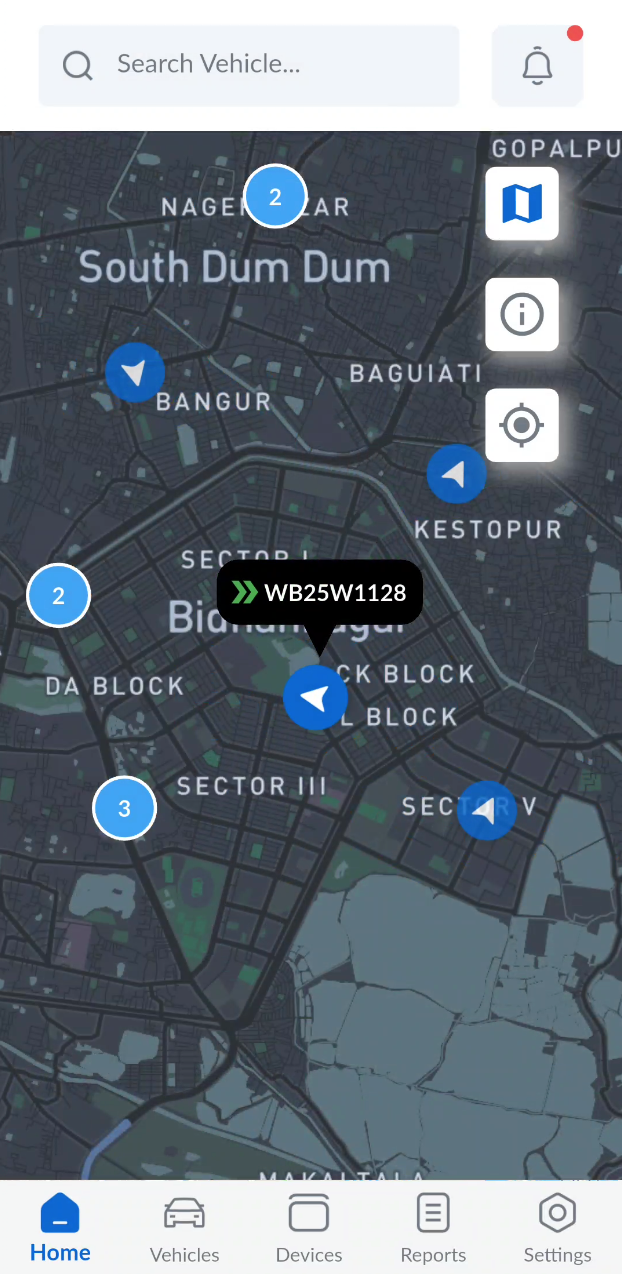
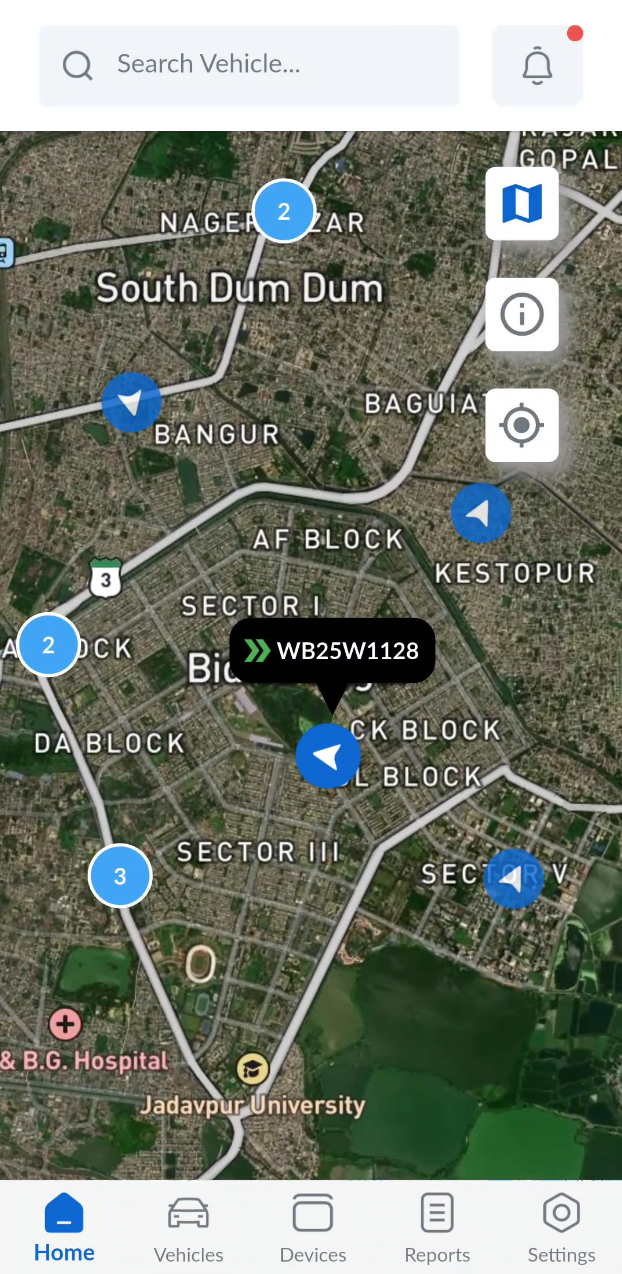
- Vehicle Status Info (highlighted in blue): Displays the legend explaining the meaning of various vehicle movement status icons on the map.
- Current Location (highlighted in black): When tapped (with location permission granted), this icon centers the map on the user's current location.
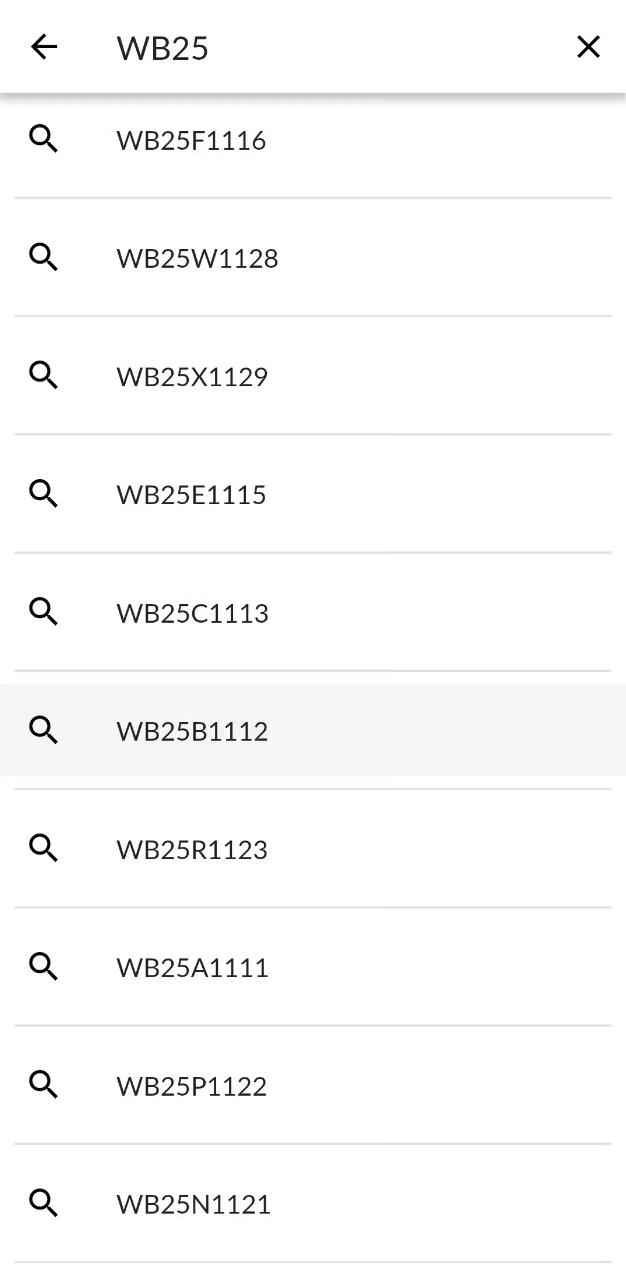
Asset Search
To search for vehicles and devices, type into the search bar at the top of the dashboard screen. Tap on any asset to view its location on the map. The details bottom pop-up will appear showing the asset's details.
Live Notification
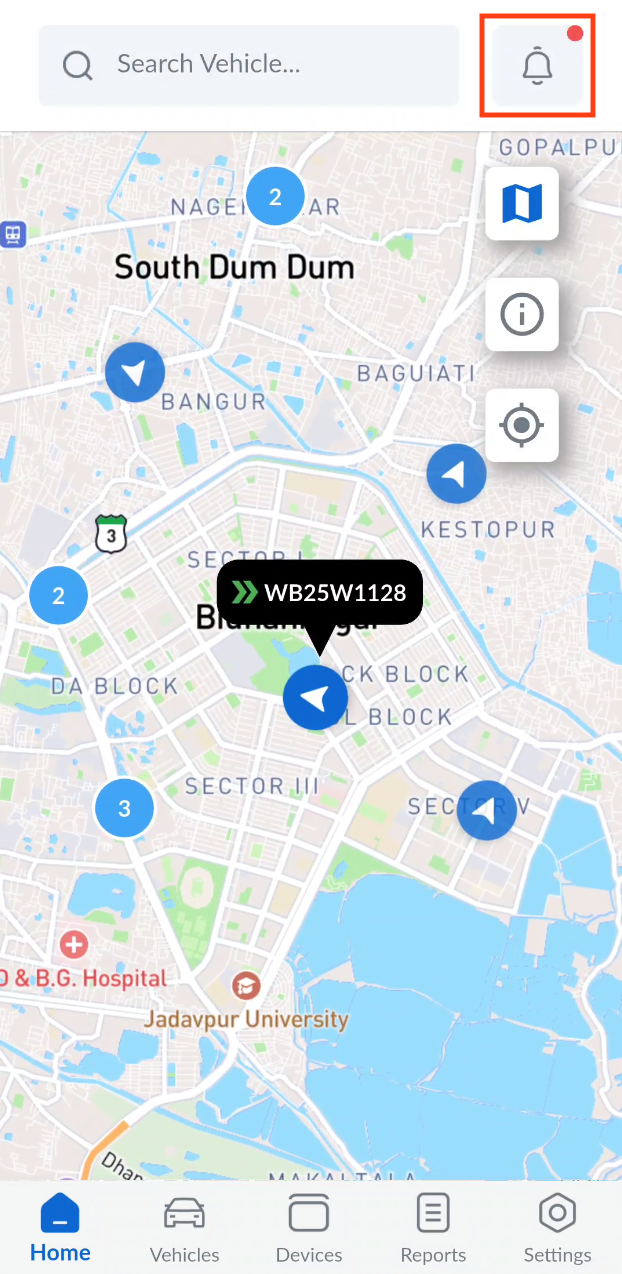
You can view live events occurring for the whole fleet (or assets that you have access to) in the notification screen.
- Tap on the notification icon to open the notification screen.
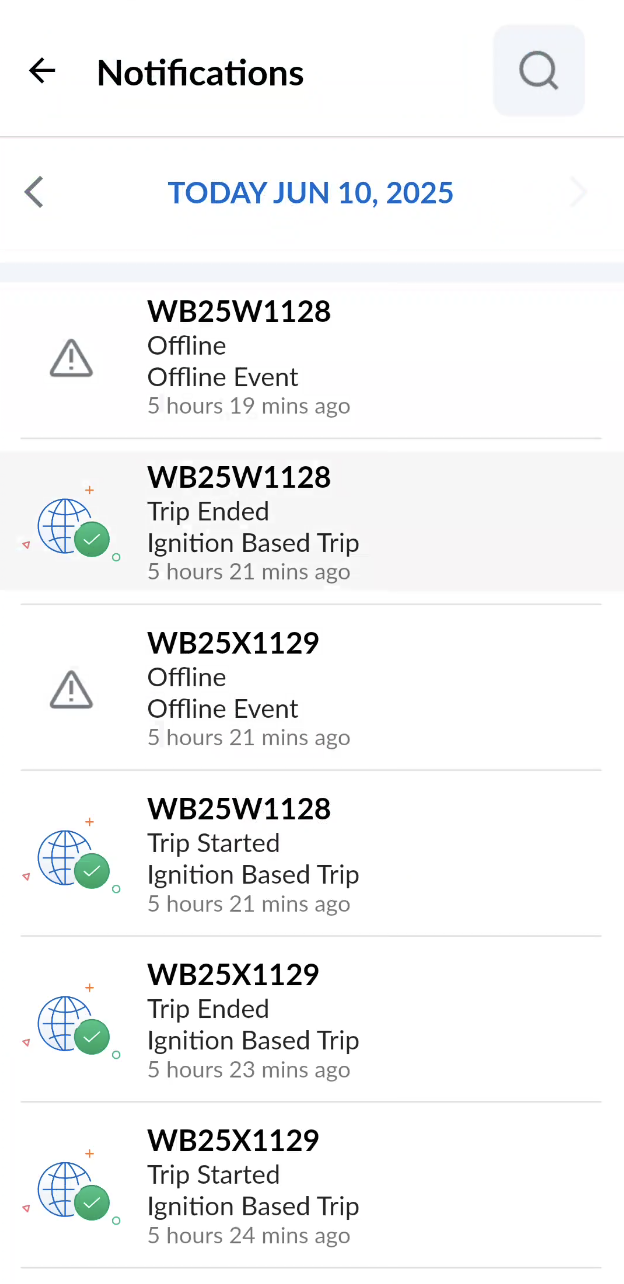
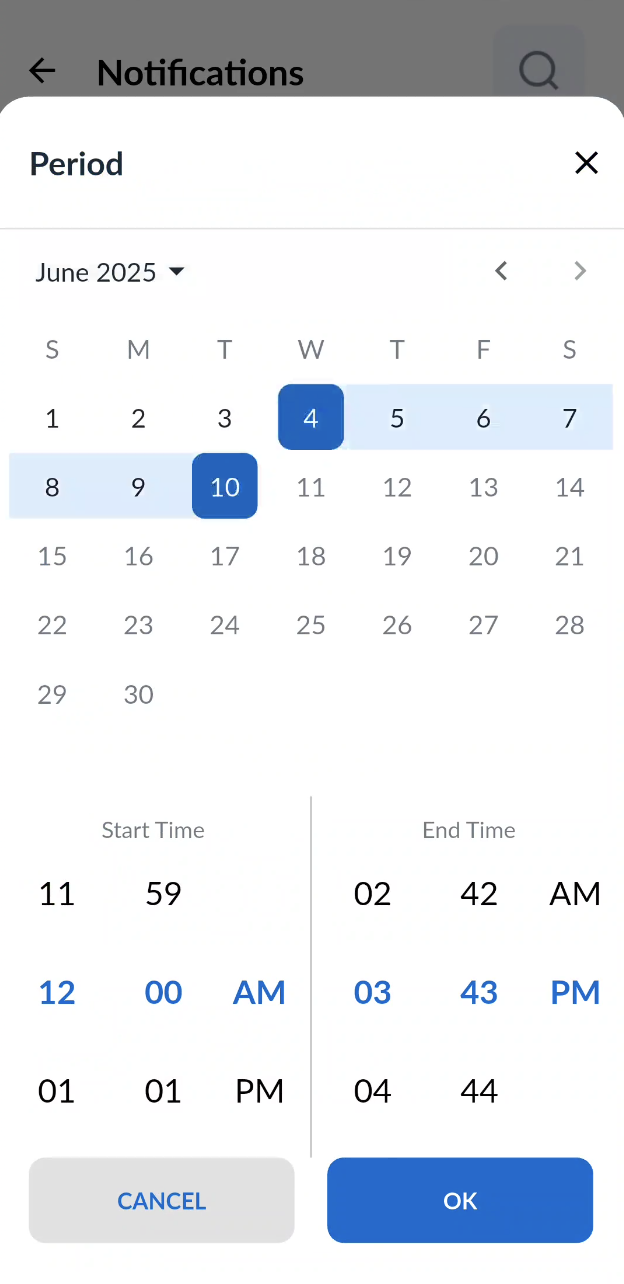
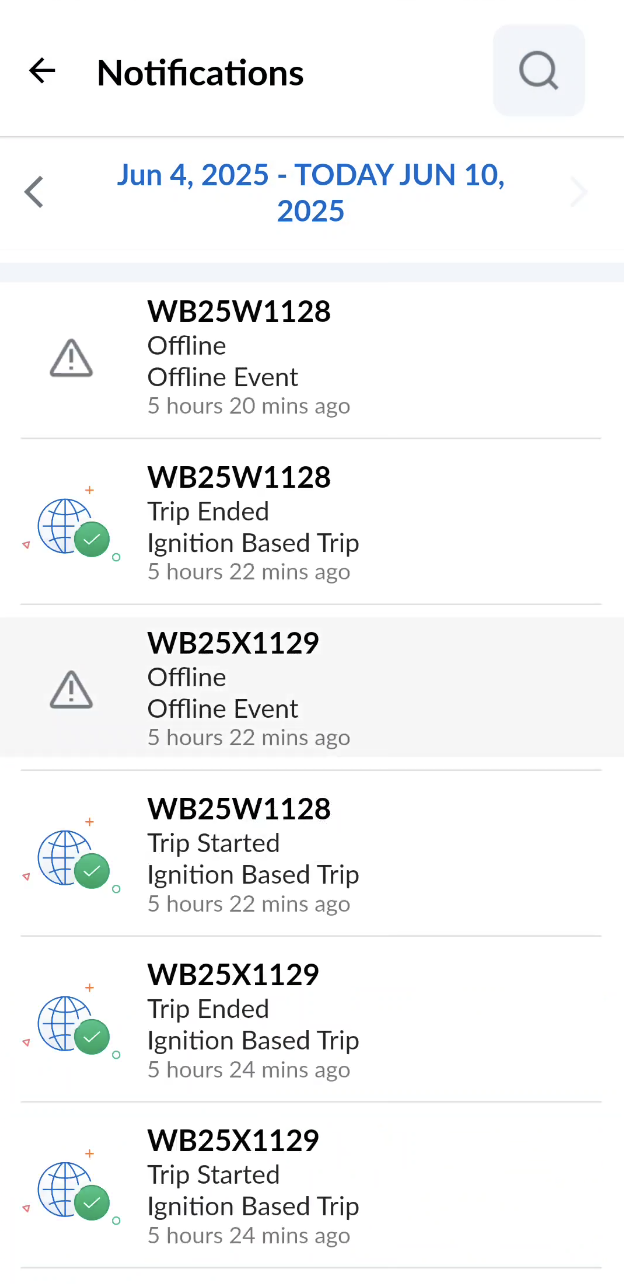
- You can choose to see the events for a particular date range from the calendar view.
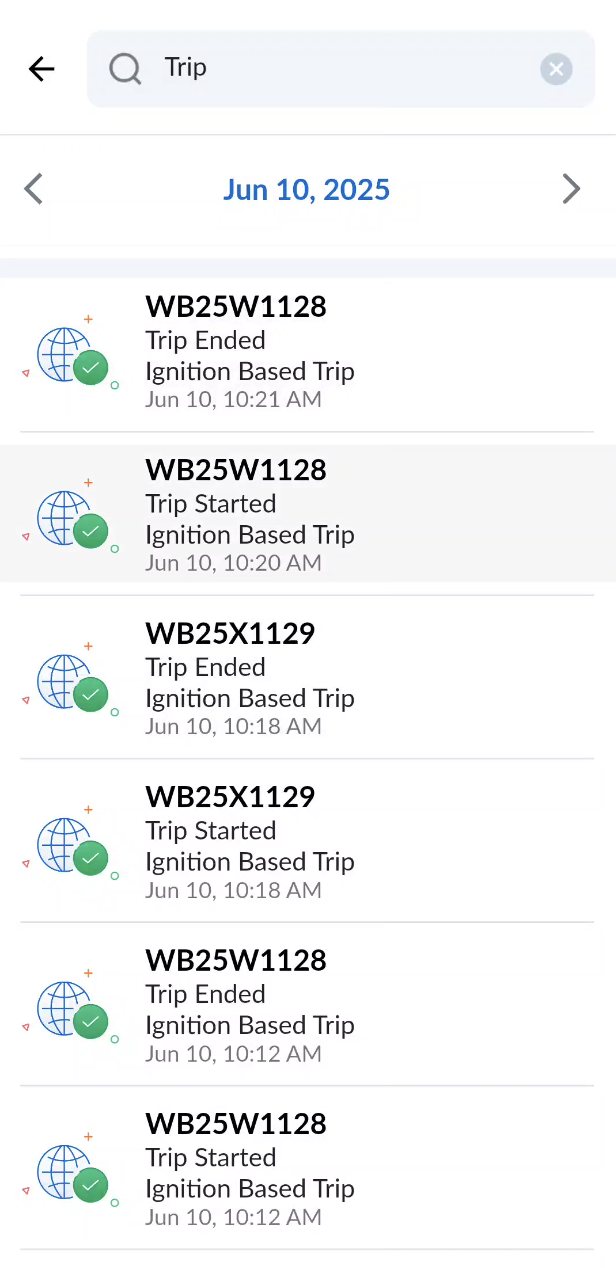
- These events can be searced by Plate No., Driver Name, Device ID, Event Name, Type, SubType and Status.
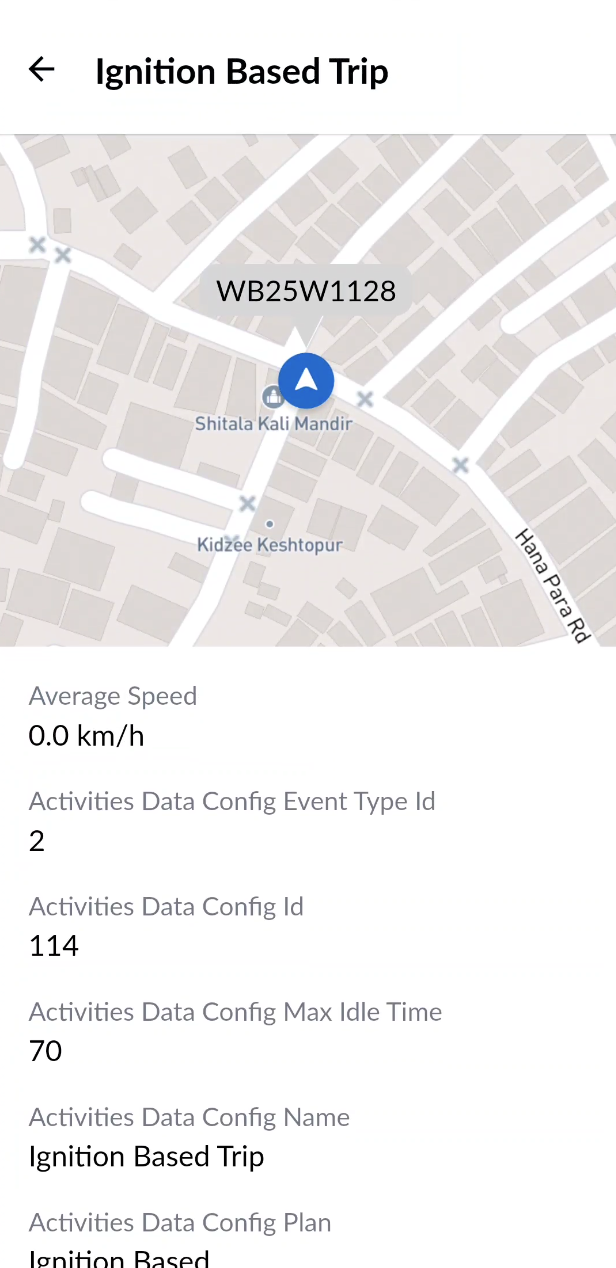
- On tapping a notification the notification(event) details shall be apprearing.
- Admin users will be able to monitor - view the location and events generated for their whole fleet.
- Non admin users will only be able to view the data ot vehicles that are assigned to them.